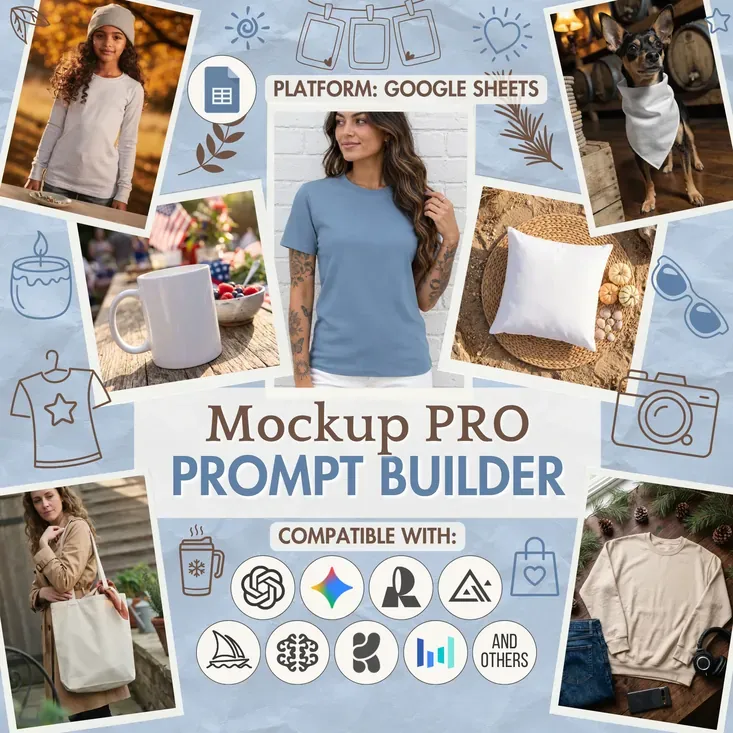
Heads up! This guide is for the newest version of the Prompt Builder. Bought an older PRO version? You can upgrade for free: open the download instruction you already have and click the link inside. It opens your original builder, where you’ll find the link to the new version.
Something not working? Write to us and we’ll send you the link directly.
Welcome, print-on-demand sellers and anyone with a design waiting for a product to carry it. This guide covers what the Mockup Prompt Builder does, which AI generators pair well with it, and how to shape prompts that come back looking like real product photography.
Mockup builder specs are the only subject here. How a prompt builder works in general - every workflow, every button, every sheet - has its own place, so if this is your first one, start with our Prompt Builder guide.
Rather watch than read? The same walkthrough is on our YouTube channel:
Video version of this guide
Table of contents:
What you can create with the Mockup Builder
Commercial product photos are what this builder writes prompts for. Two things hold true in every one of them: the product is in focus, and the product is blank, with the surface left empty for your own design. Apparel and non-apparel both live in the Product type dropdown, shots with a model and shots without one are equally at home, and flat lays are covered as well.
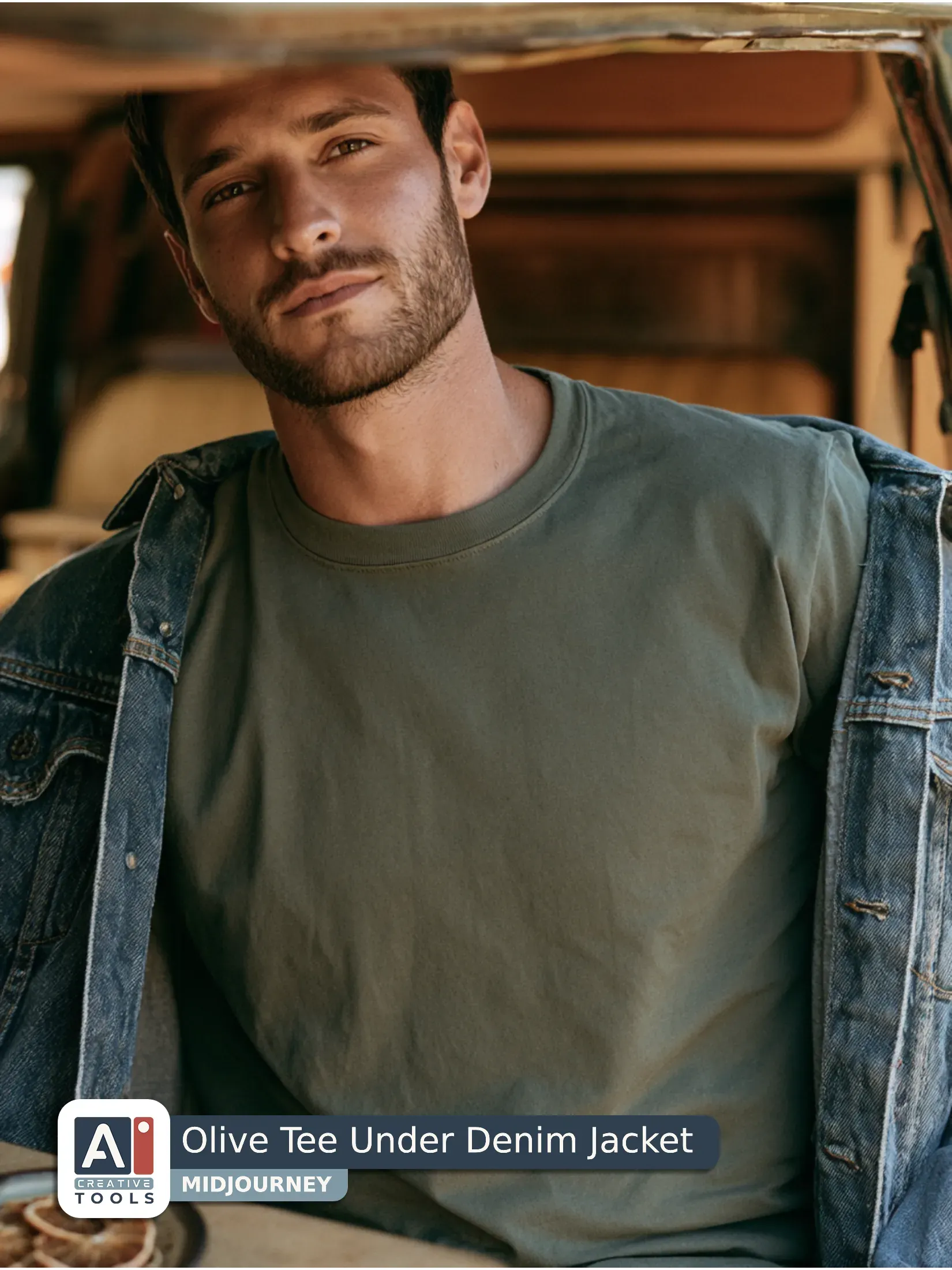
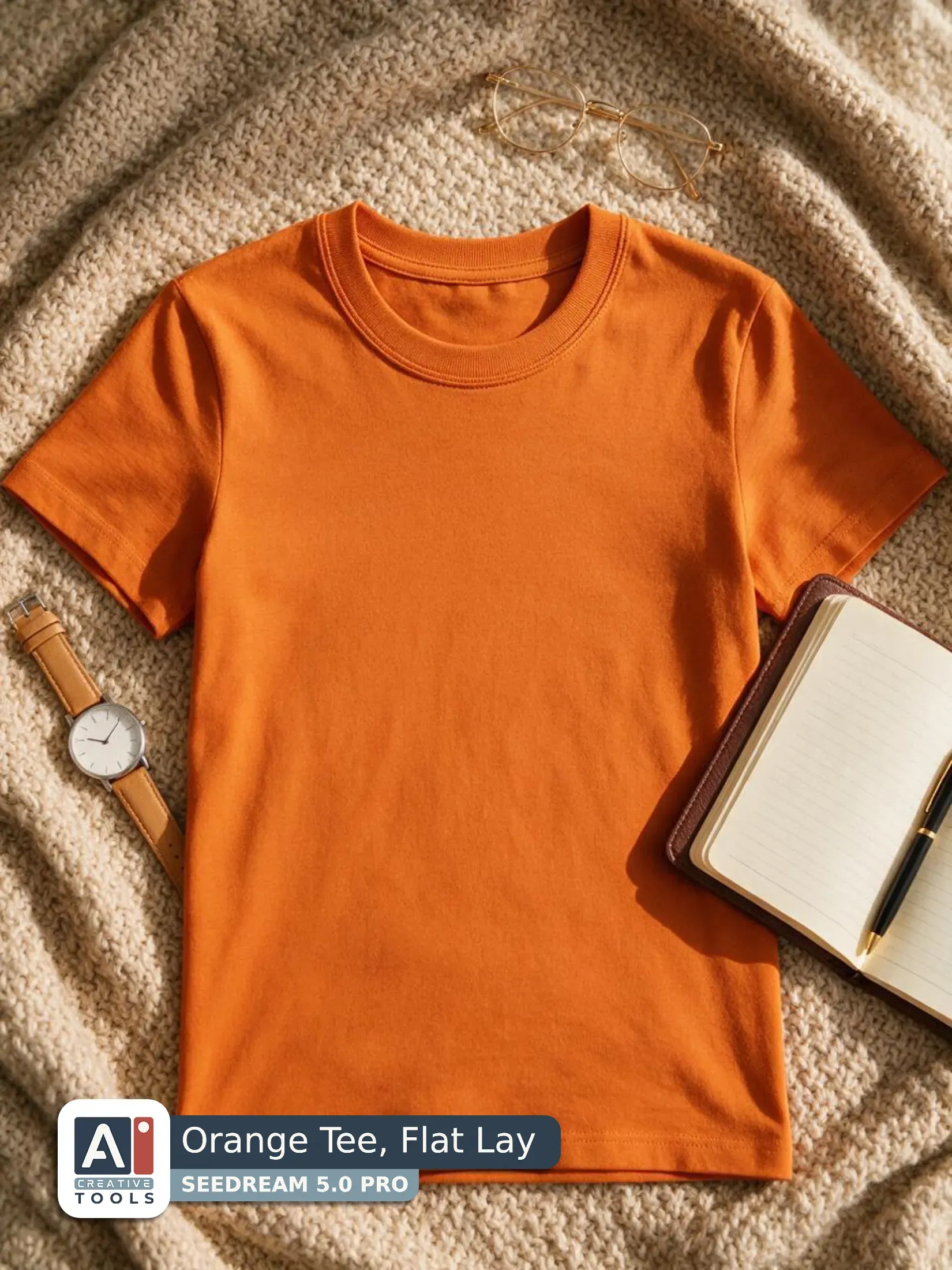
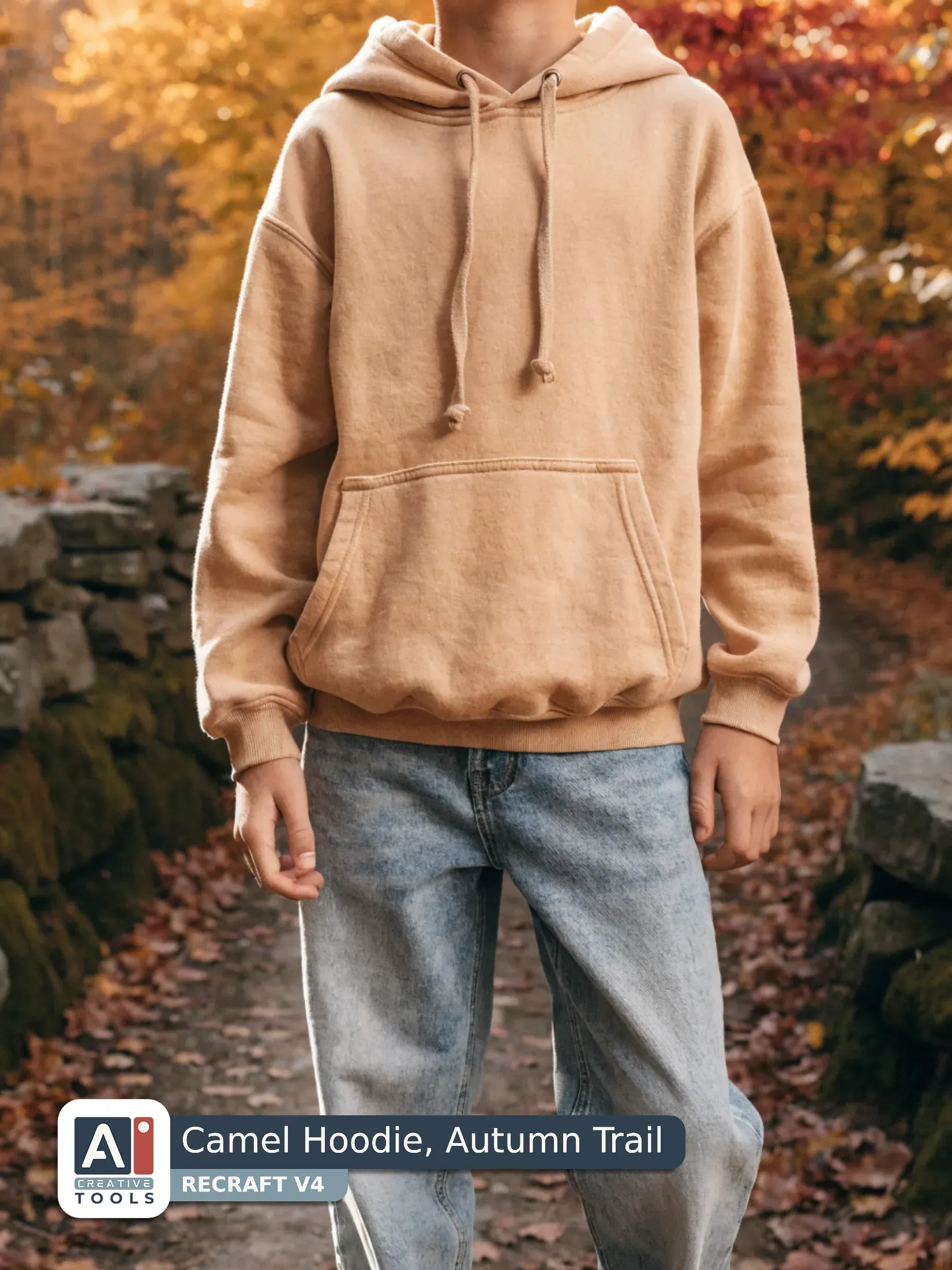
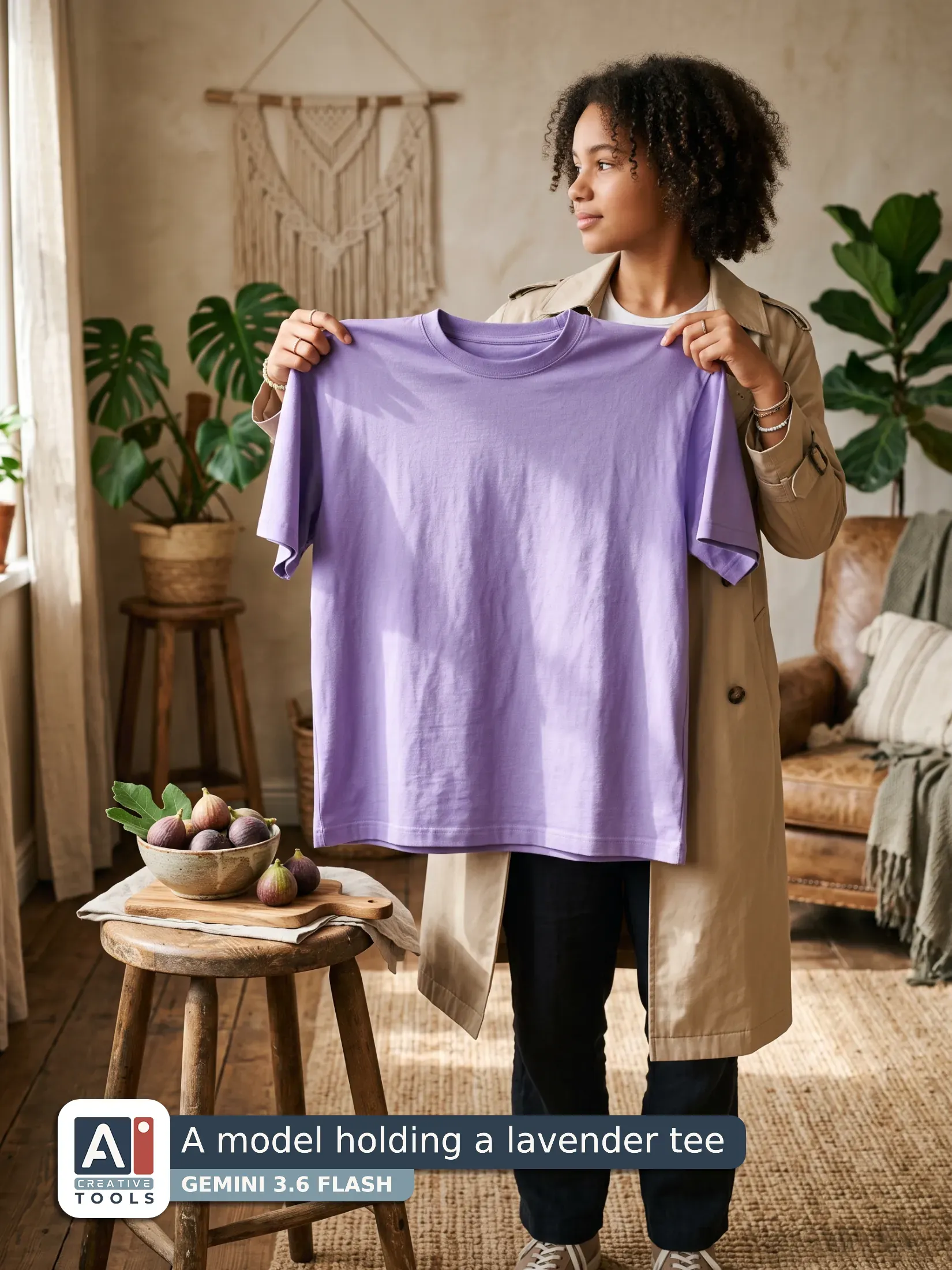
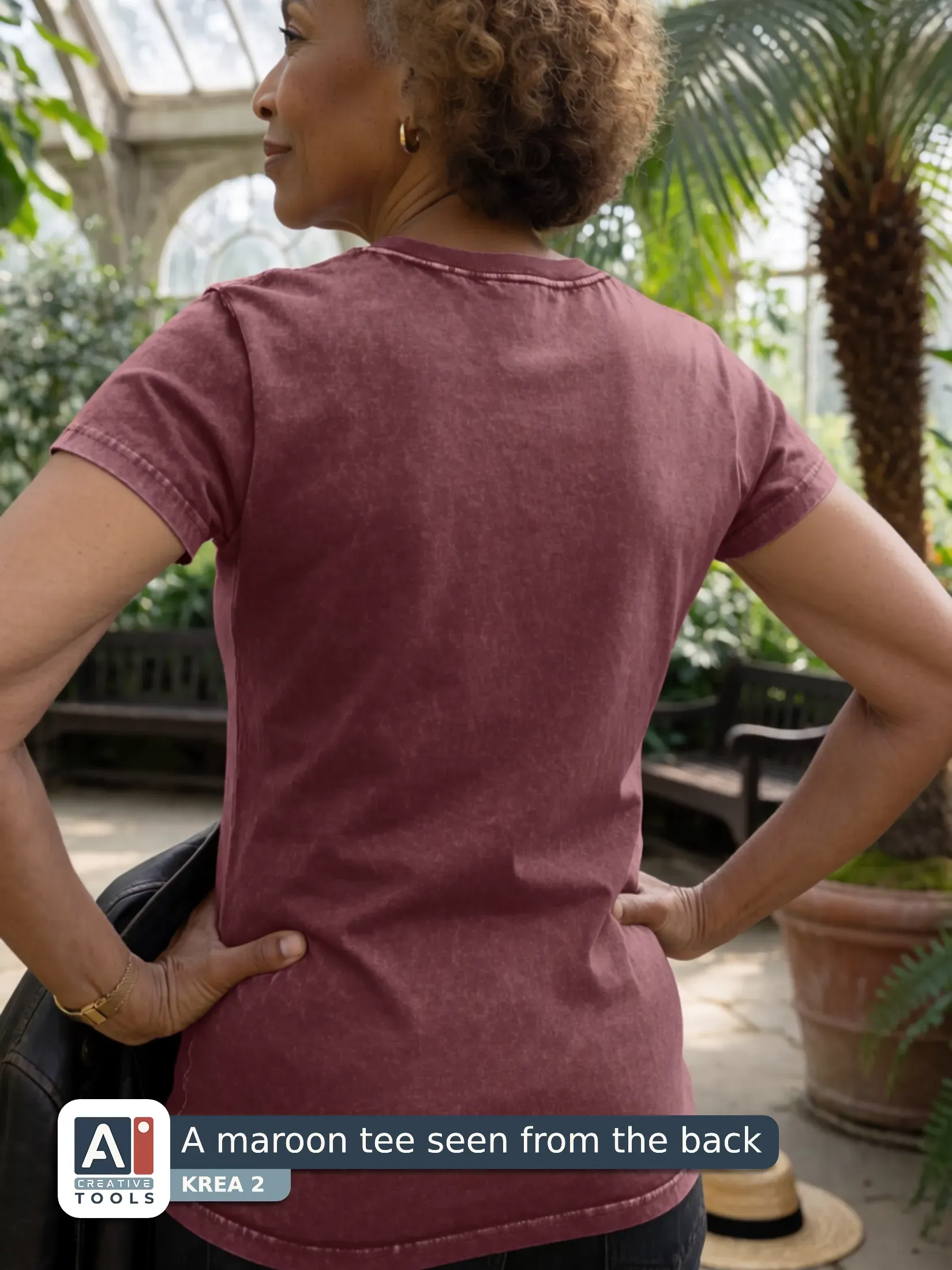
The gallery below holds mockups that started as prompts from this builder. Each prompt sits in the block under the images, ready to read or copy.
Swipe to view more
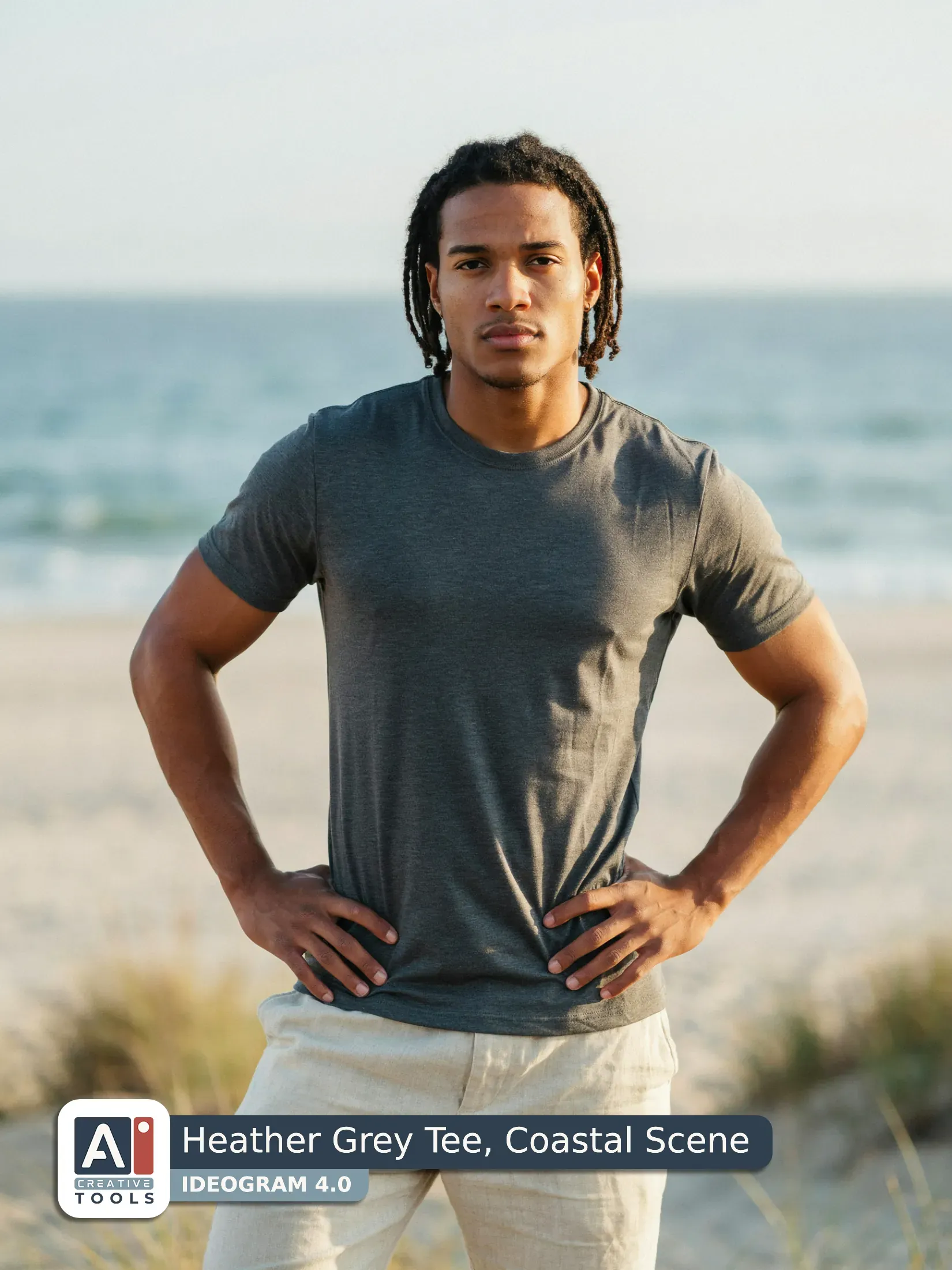
- Heather Grey Tee, Coastal Scene (Ideogram) Photograph of a blank dark heather grey fitted t-shirt mockup, worn by a male fashion model with medium brown skin and locs, standing with hands on hips. The t-shirt is plain and completely empty, with no lettering, no logo, and no pattern, its fabric showing a soft heather texture and a close fitted cut through the chest and sleeves. The model wears linen pants and the frame is a tight close-up from upper torso to mid-thigh, filling most of the frame. Behind him is a coastal beach backdrop with out of focus shoreline. Natural golden-hour sunlight creates warm highlights and gentle shadows.
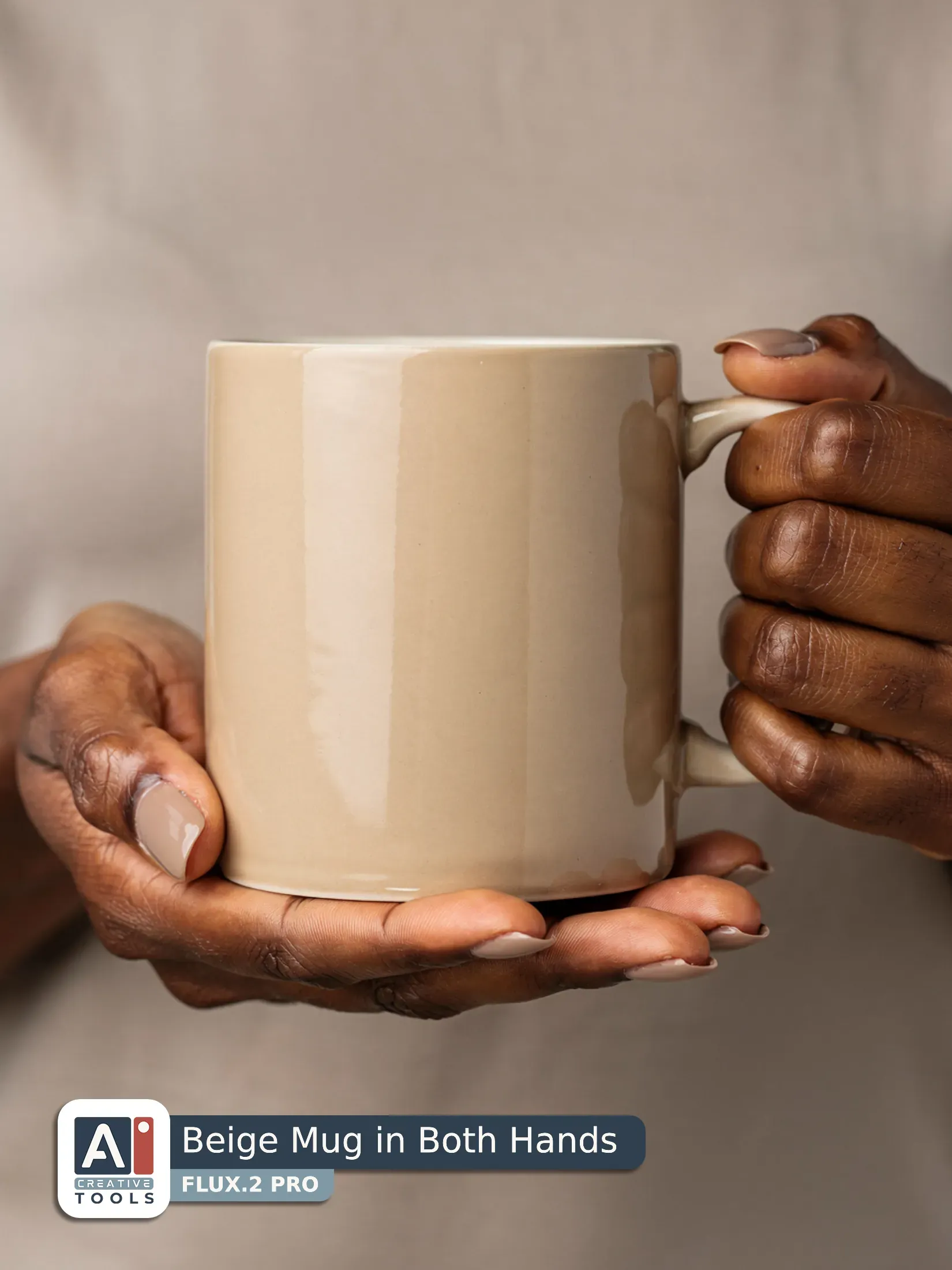
- Beige Mug in Both Hands (Flux) A blank sand-colored ceramic mug, glossy finish, presented as a mockup photograph, held up in both hands by a model with deep brown skin. The close-up crop frames the mug centered at chest height, with painted nails clearly visible around the handle and base. The mug’s surface is completely empty and smooth, with no lettering, logo, or pattern anywhere. Behind it, the minimalist studio scene uses a clean neutral backdrop and a simple shadow falloff. Soft diffused lighting creates gentle reflections on the mug’s glossy glaze, highlighting its curved silhouette, with a shallow depth of field from a real camera.
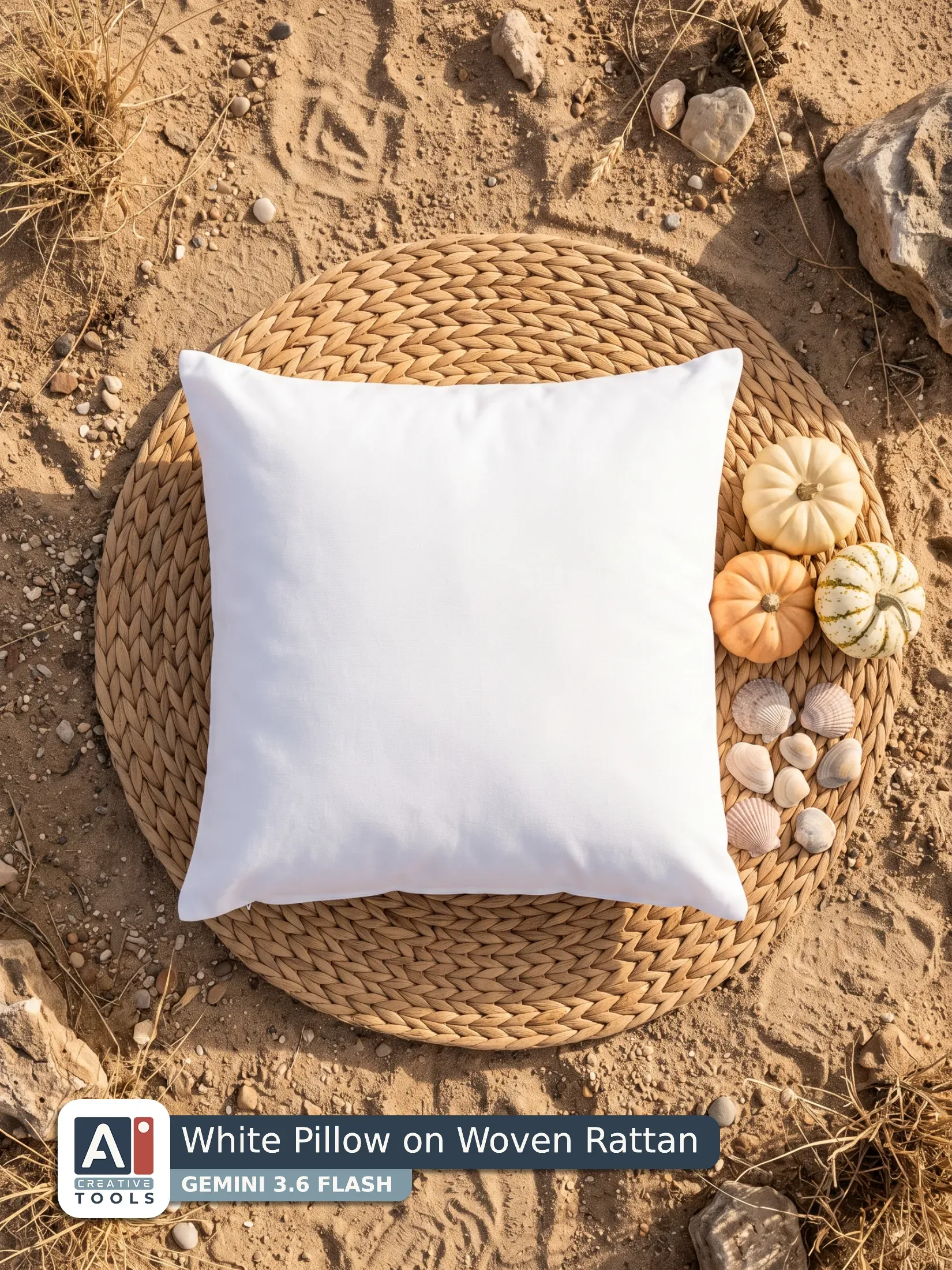
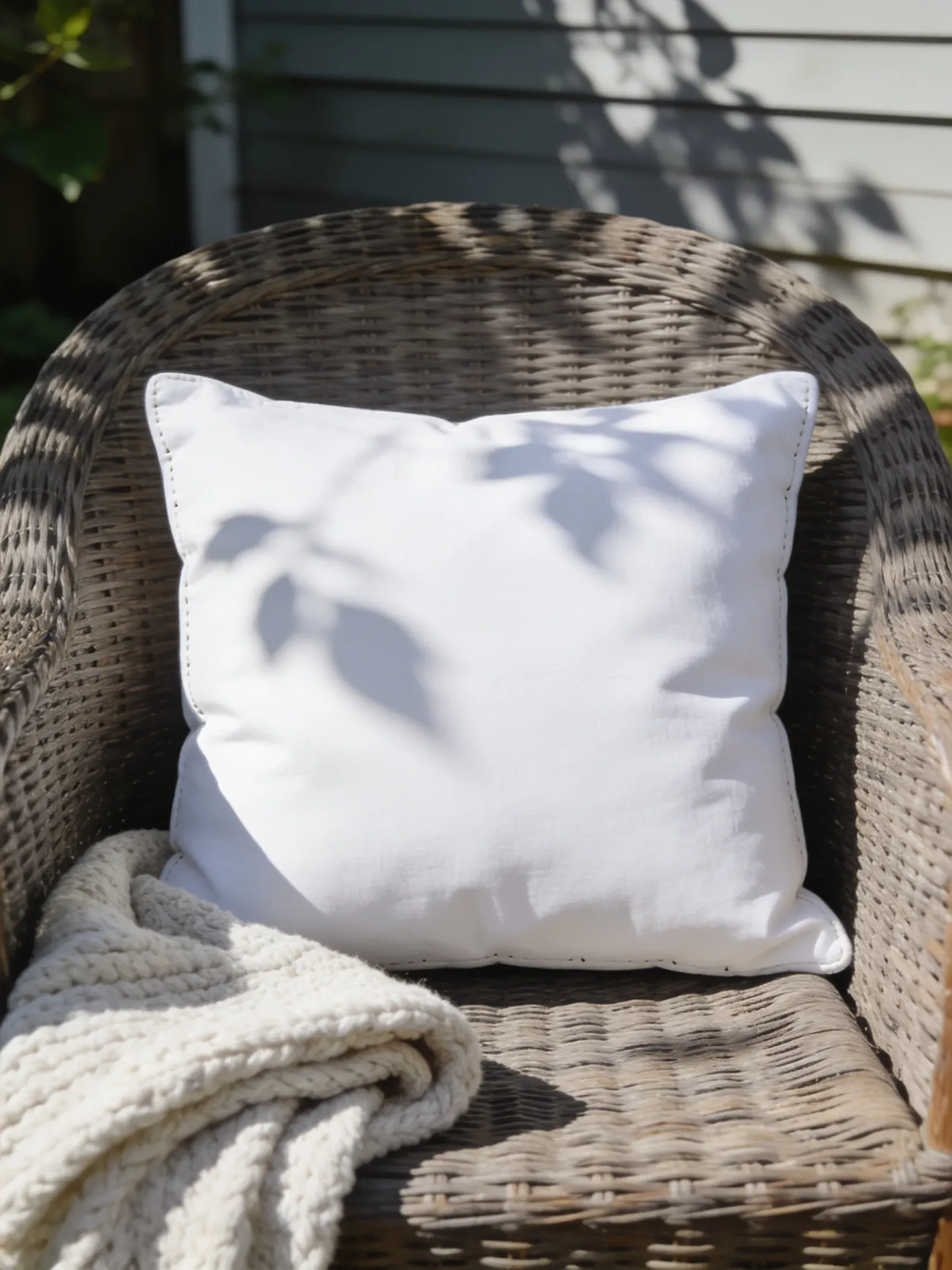
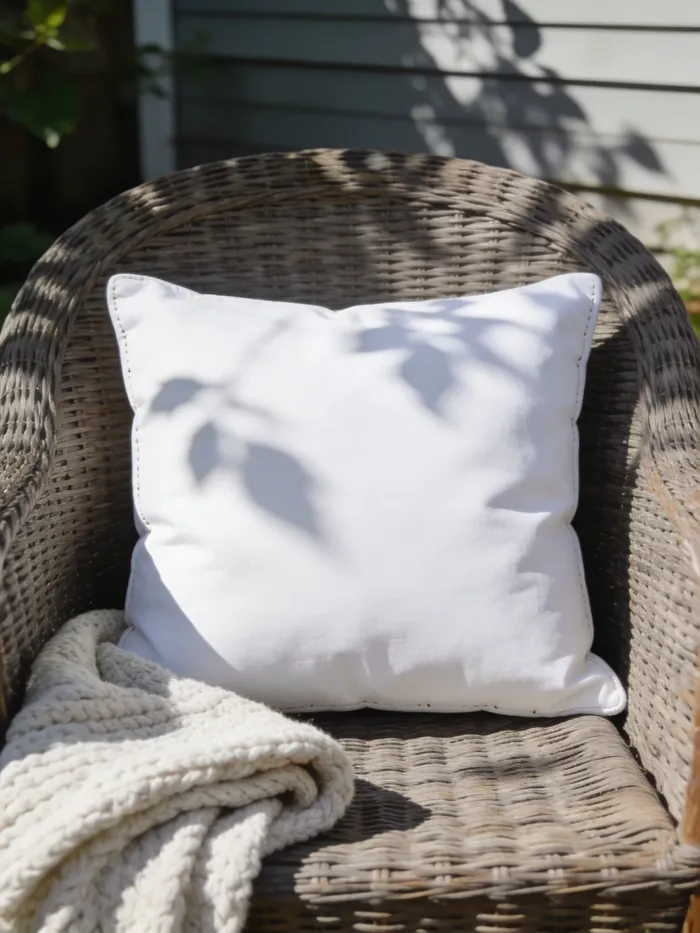
- White Pillow on Woven Rattan (Gemini) Create a photograph of a blank white square throw pillow in a flat lay mockup on a sun-bleached desert backdrop. The pillow sits centered on a woven raffia placemat, its fabric looking soft and plush with clean, empty seams and a completely blank cover. Beside the pillow, scatter a few small pumpkins and a handful of seashells, letting their pale tones catch the warm highlights. Shoot from a top-down 90-degree angle so the entire square pillow face is clearly readable and flat to the frame. Warm lamp light creates gentle shadows across the raffia texture and desert surface, with a cozy autumn feel. Capture with a sharp lens for crisp detail. Aspect ratio 3:4.
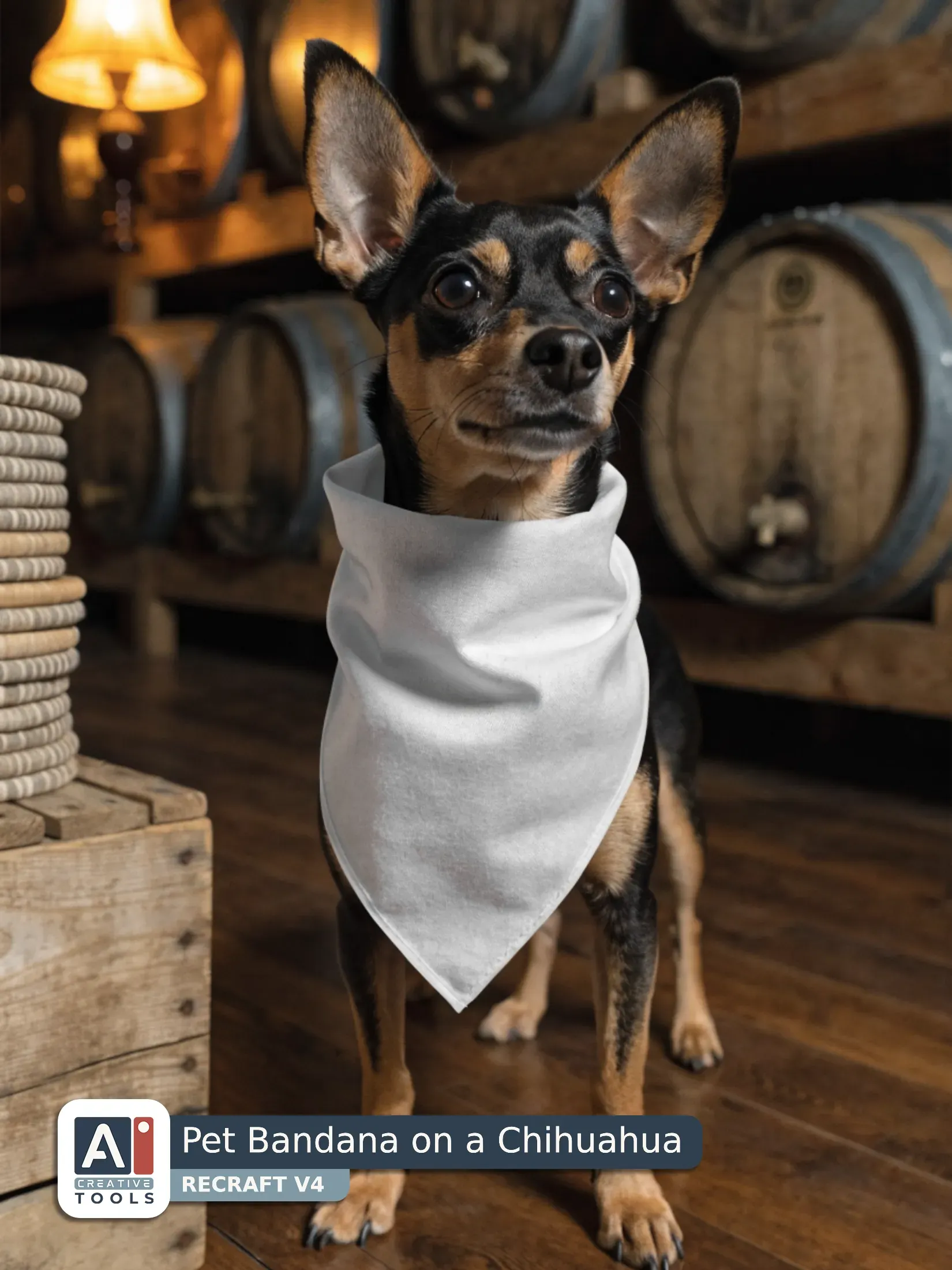
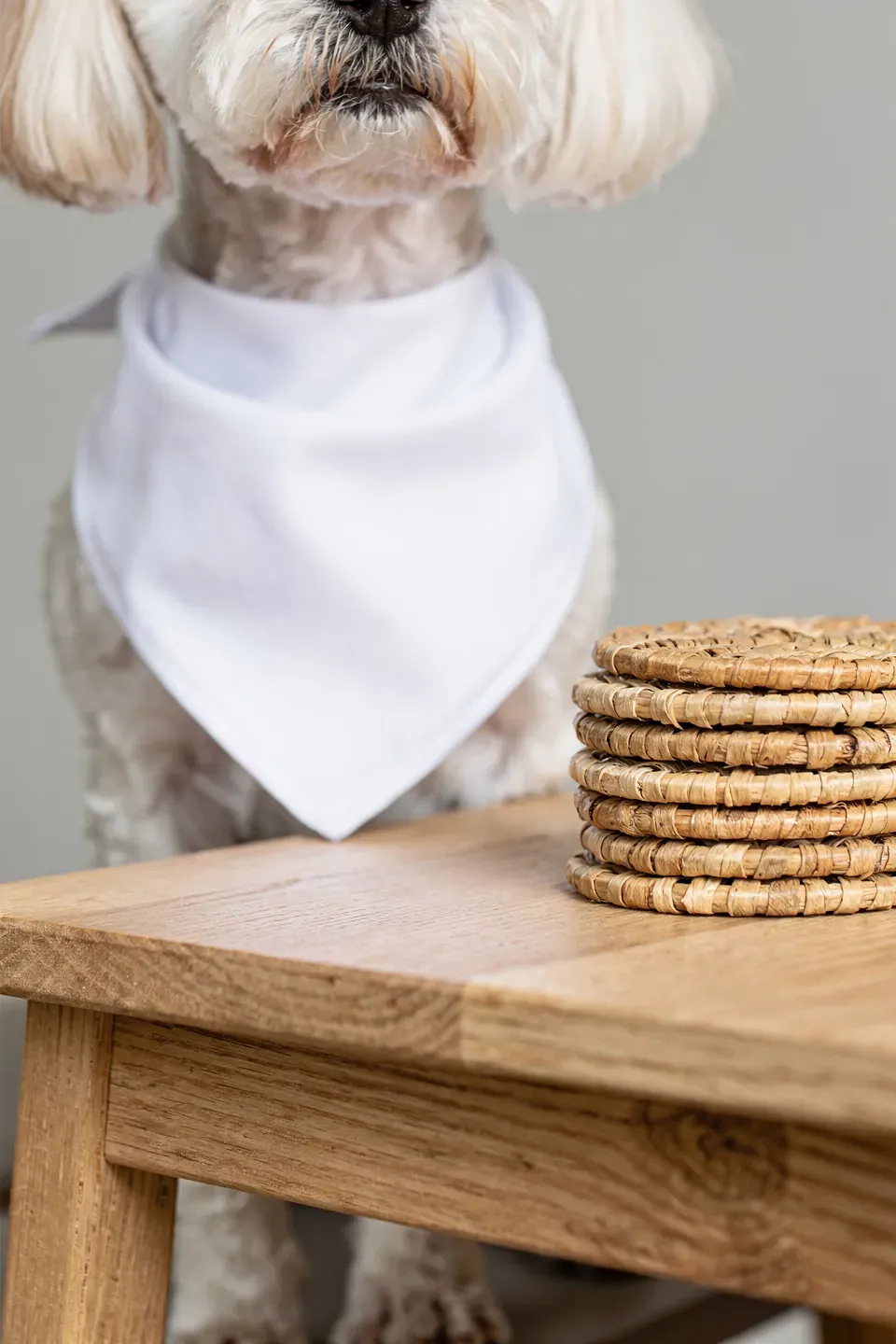
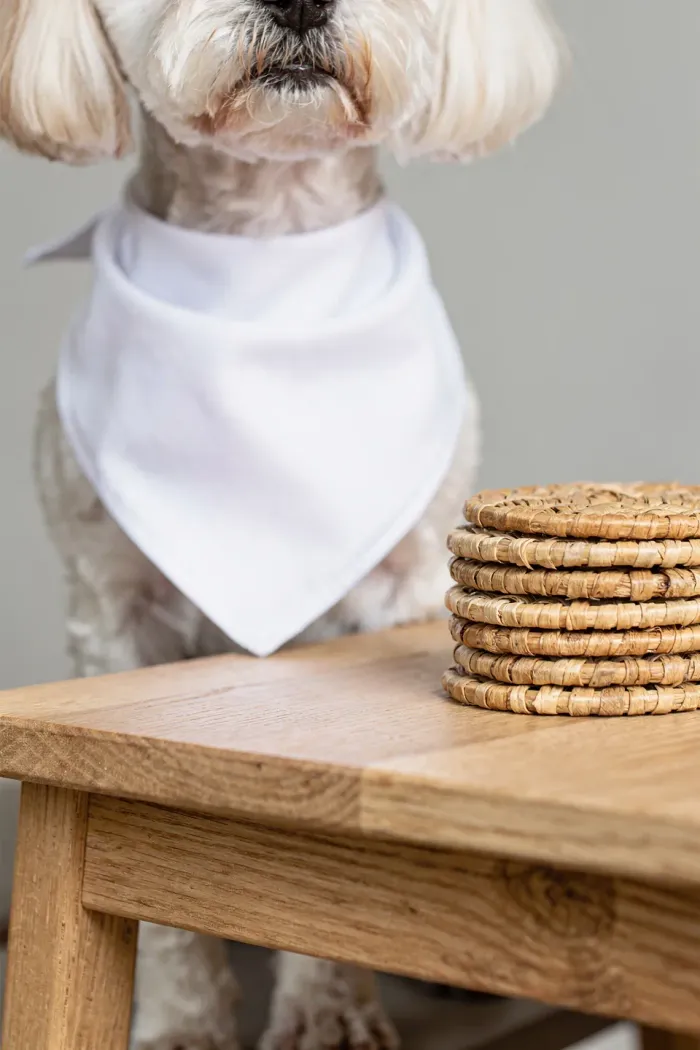
- Pet Bandana on a Chihuahua (Recraft) One photograph of a blank white pet bandana mockup, wrapped around a small dog’s neck, empty fabric with no lettering or graphics. The dog stands in a rustic wine cellar setting with dark wood barrels and warm amber tones in the background. A stack of woven coasters sits on a wooden crate beside the dog, partially in frame. Warm lamp light creates soft highlights on the bandana’s clean surface and gentle shadows on the cellar floor. Shot with a 50mm lens, shallow depth of field, natural color.
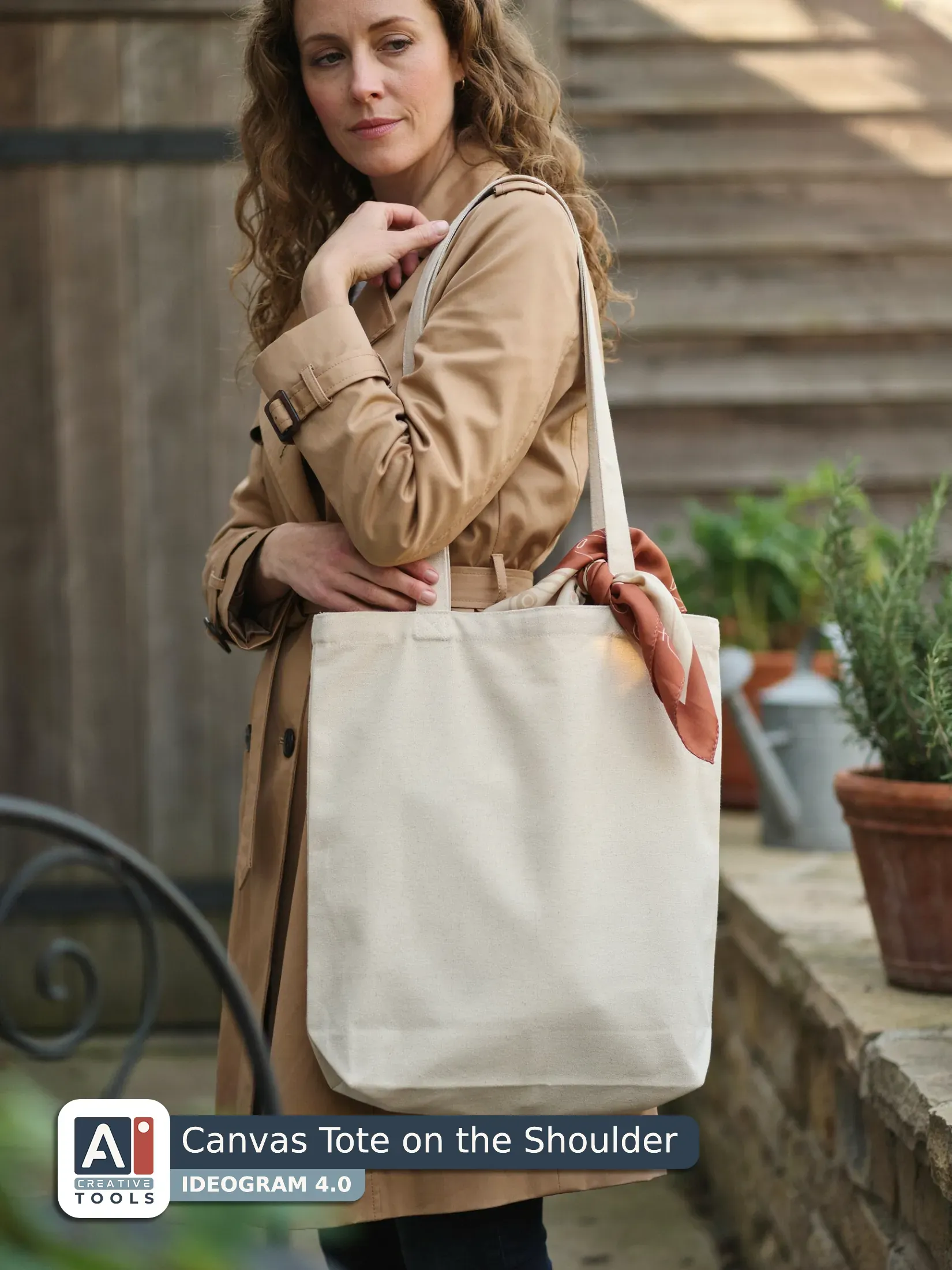
- Canvas Tote on the Shoulder (Ideogram) A blank canvas tote bag in natural beige, carried over the shoulder, is photographed as a close mockup from a three-quarter angle so the bag fills most of the frame. A woman in her forties, petite, with long curly hair, is shown in three-quarter view wearing a classic trench coat, her posture relaxed as the tote hangs at her side. The rustic farmhouse backyard patio backdrop features warm earthy tones, with a silk scarf draped near the tote opening for a touch of texture. Soft late-afternoon sunlight with gentle shadows illuminates the canvas weave clearly, and the camera is close, slightly angled for realism.
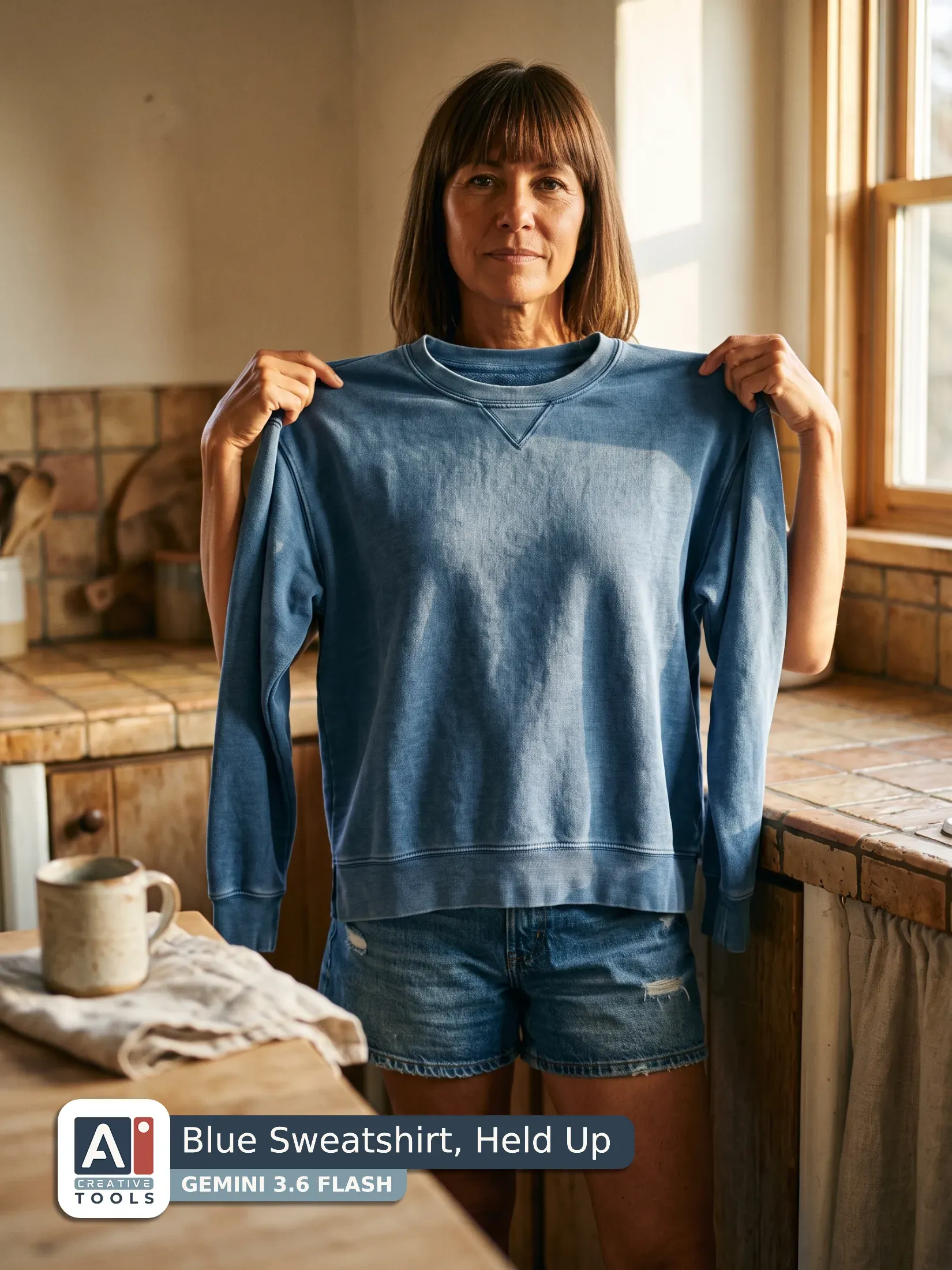
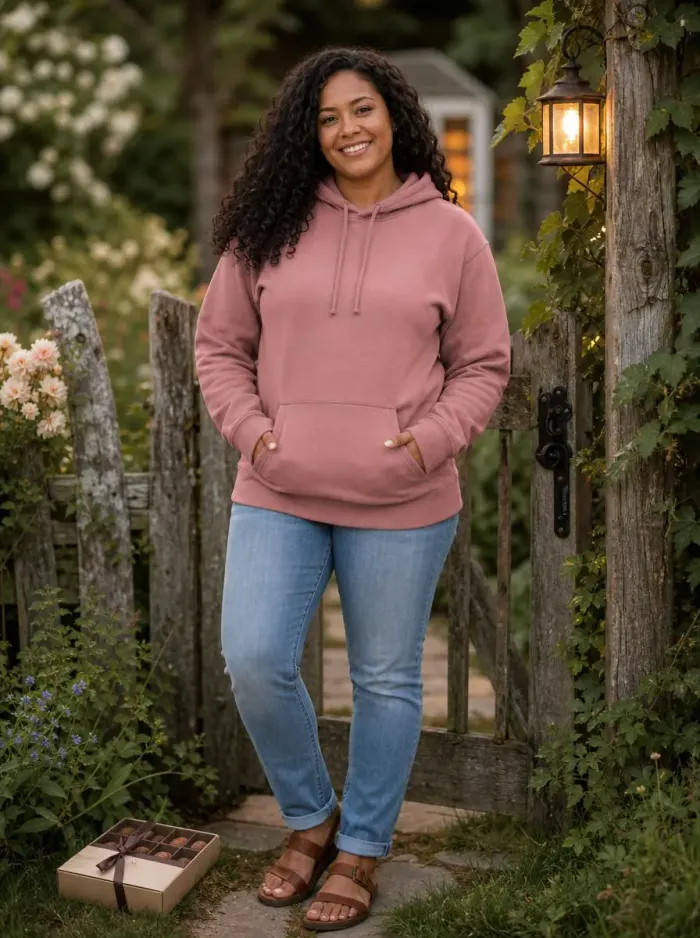
- Blue Sweatshirt, Held Up (Gemini) Create a photograph of a blank denim wash blue sweatshirt, held up in both hands in a wearable mockup, on a full body woman model in her fifties with tan skin, blunt bangs, and hands on hips, wearing denim shorts. The sweatshirt is an oversized french terry piece with its surface completely empty and clearly readable, framed against a rustic ceramic-tiled kitchen nook with warm, aged grout lines and natural texture. A linen napkin is folded beside a ceramic mug on a nearby countertop, slightly out of focus. Golden hour sunlight streams in from the side, casting gentle highlights on the terry fabric while keeping the background softly blurred with shallow depth of field, shot on a real camera with a natural, crisp look. Aspect ratio 3:4.
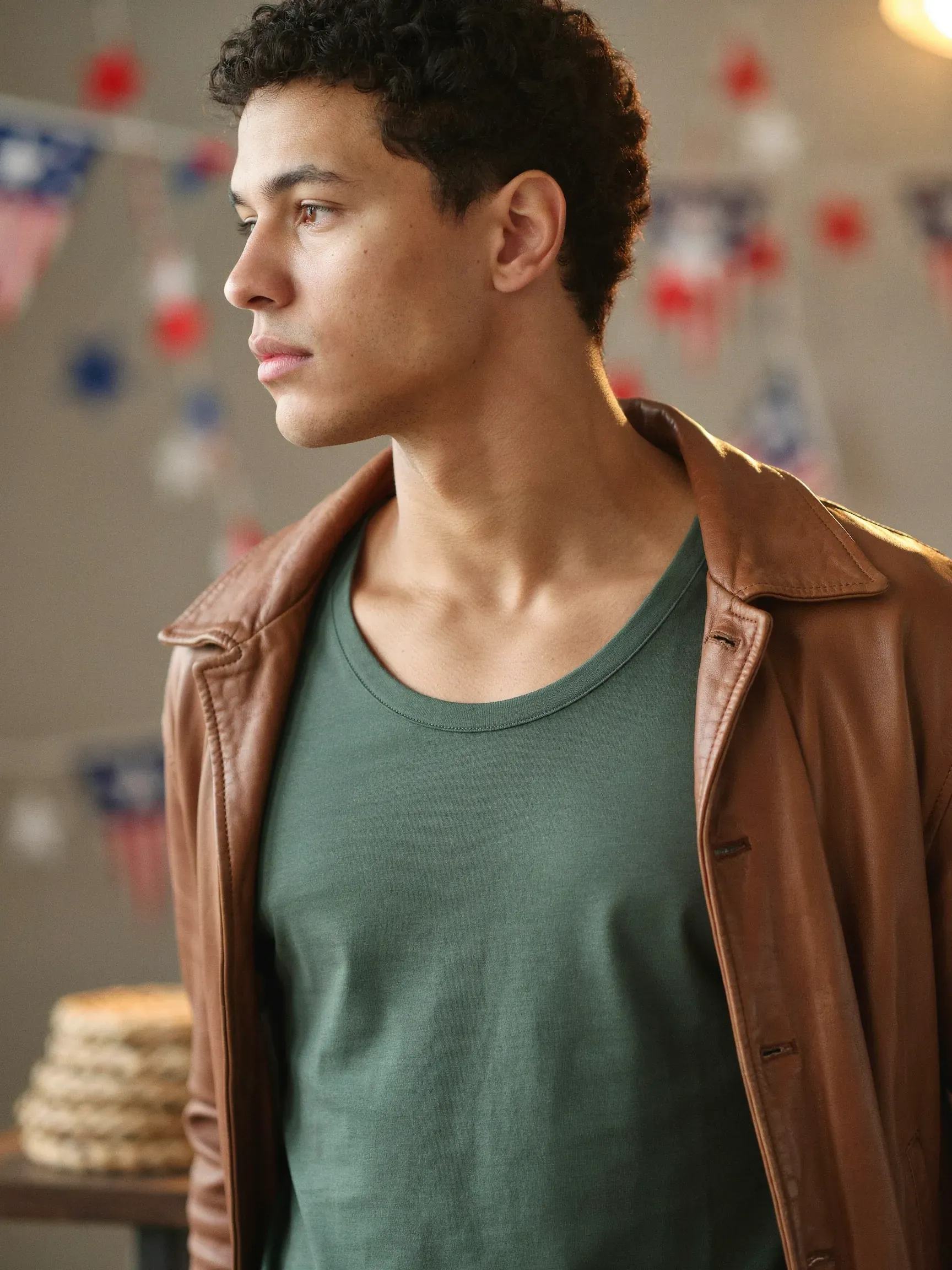
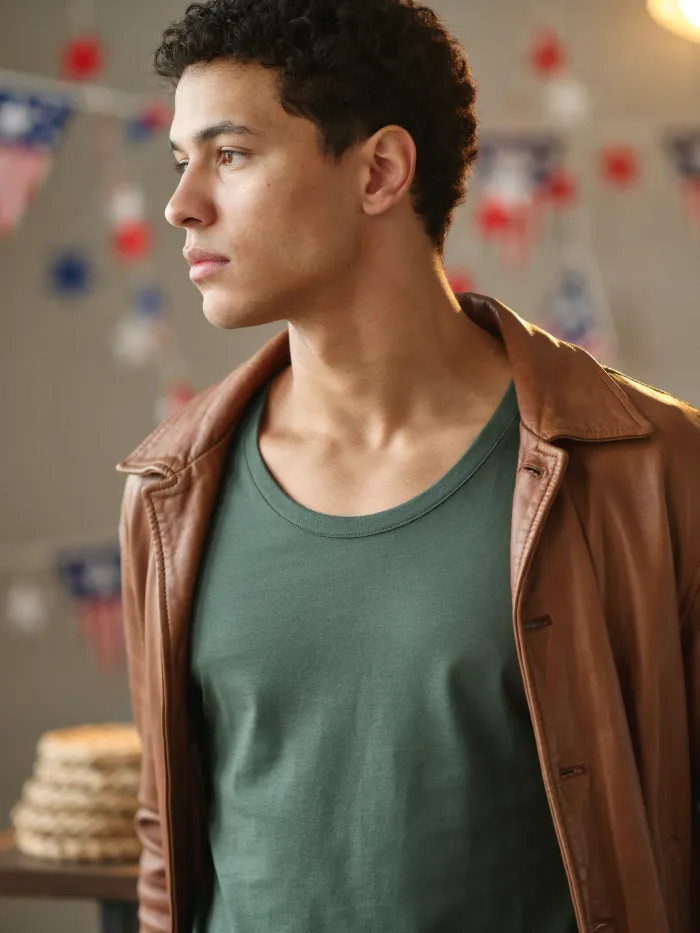
- Olive Tee Under Denim Jacket (Midjourney) Blank olive green t-shirt, fitted garment-dyed cotton, worn by man in his twenties, tan skin, buzz cut, clean shaven, close-up crop turning toward the camera, open denim jacket framing the shoulders, vintage camper van interior backdrop, warm weathered upholstery and wood tones softly out of focus, a small dish of dried citrus slices placed on a nearby surface in the lower foreground, t-shirt surface completely empty and readable, gentle fabric folds, soft natural daylight, shallow depth of field, realistic product mockup photography, 50mm lens, f1.8, ISO 200, --ar 3:4 --v 8.2
- Orange Tee, Flat Lay (Seedream) Create a photograph of a blank burnt orange t-shirt in a flat lay mockup, shown top-down at a 90 degree angle with the crewneck and ribbed collar clearly visible and the fabric lying perfectly smooth. The t-shirt rests on a beige knit blanket with visible cozy fibers, filling the background and edges of the frame. Place reading glasses near the collar area, a wristwatch off to one side of the shirt, and a journal with an open pen resting beside them so they feel casually arranged. Soft natural daylight washes across the scene from the side, creating gentle shadows under the collar and ribbing, and a crisp fabric texture that reads cleanly. Shot with a DSLR, 50mm lens, shallow depth of field.
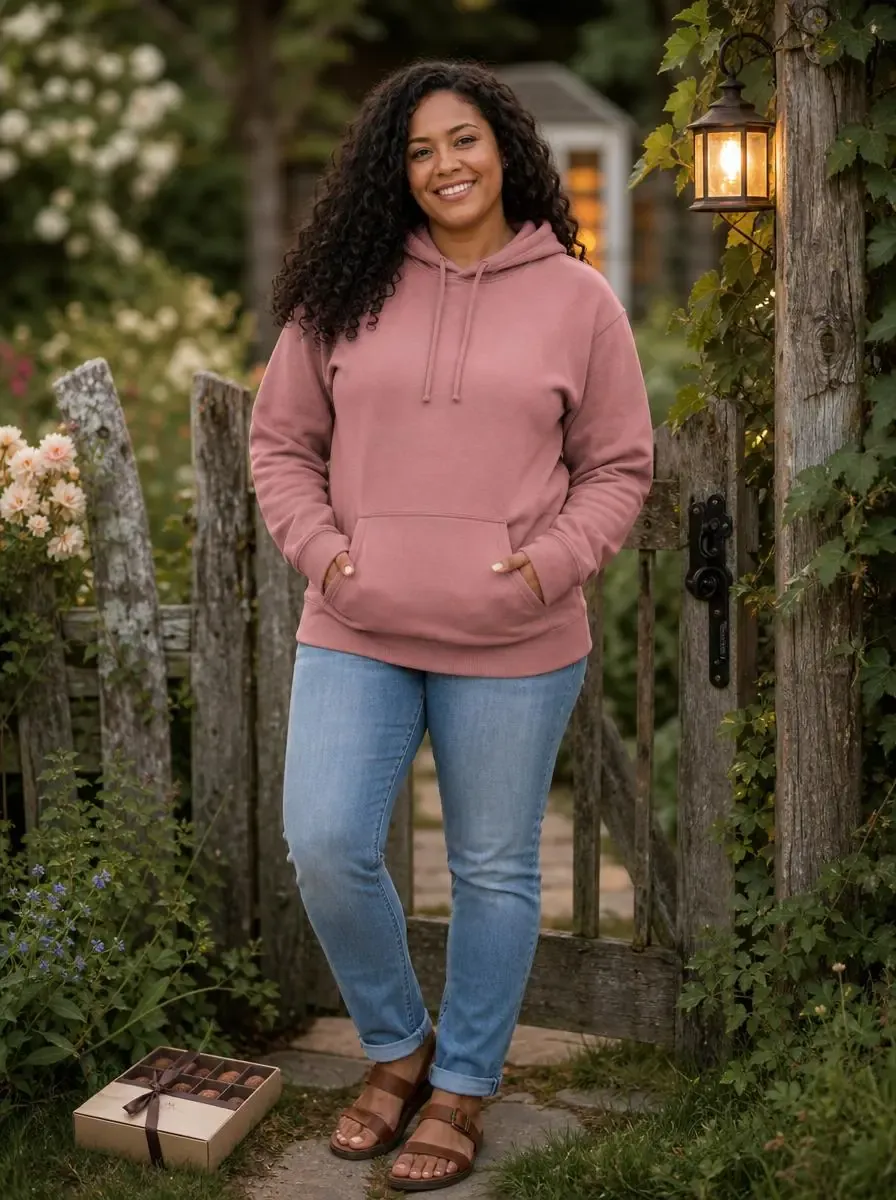
- Camel Hoodie, Autumn Trail (Recraft) Photograph of a blank sand hoodie mockup worn by a little boy with a slim build, short hair, head cropped out of frame, light-wash jeans visible. The hoodie is sand-colored cotton knit with a kangaroo pocket, completely empty and showing no logos or lettering. He stands outdoors in a cottagecore autumn setting with golden and rust foliage softly blurred behind him. The hoodie rests naturally on his torso with relaxed folds. Warm late-afternoon sunlight filters through the trees, creating soft highlights and gentle shadows, shot on a real camera with shallow depth of field.
- A model holding a lavender tee (Gemini) Create a photograph of a blank lavender t-shirt in a held-up-by-both-hands mockup format, shown as an oversized heavyweight cotton garment held taut at chest level by a teenage girl with light brown skin and short curly hair, her head turned to the side in a full body view. She wears a neutral trench coat, the t-shirt surface completely smooth and empty, clearly readable with no lettering or marks. Place the scene in a boho living room with woven textures and warm earth tones, and set a wooden board beside her holding a handful of fresh figs with natural stems. Use soft natural daylight with gentle shadows falling across the lavender fabric, shot with a real camera for crisp detail. Aspect ratio 3:4.
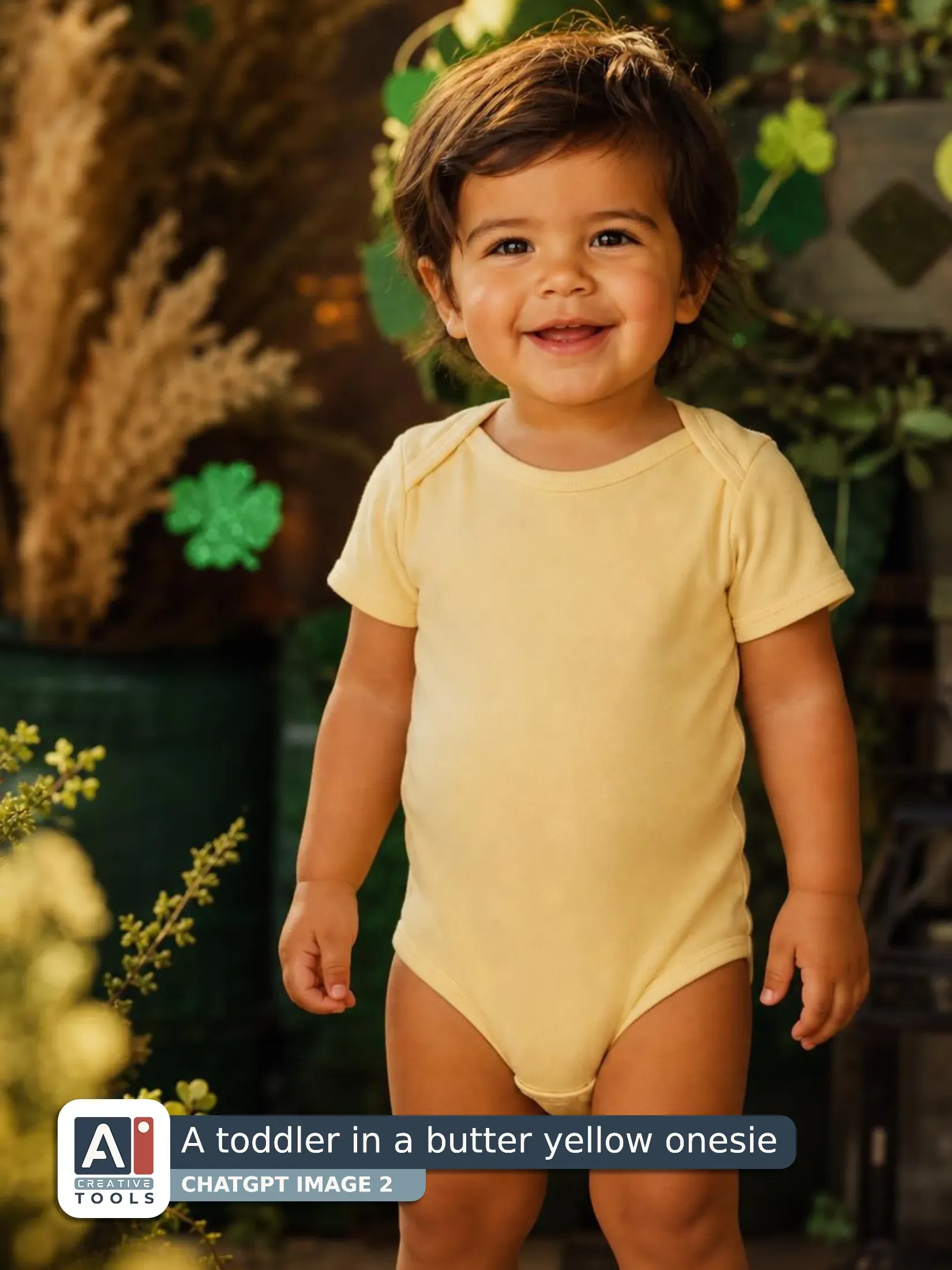
- A toddler in a butter yellow onesie (ChatGPT) Create a photograph of a blank butter yellow baby onesie in a worn-by-a-model mockup, photographed on a toddler with tan skin, shown from the front in a natural standing pose. The onesie is made of heavyweight cotton with an empty, clean surface and no visible lettering or graphics, softly draping from shoulders to legs. Set the scene at golden hour with St Patrick's Day decor in deep greens, small clover details, and dried pampas grass placed around the toddler, with a few sprigs softly blurred in the foreground and background. Use shallow depth of field so the onesie fabric and seams look crisp while the clover-and-green backdrop falls away. Shoot with an 85mm lens, eye-level camera angle, warm cinematic light, and realistic skin texture.
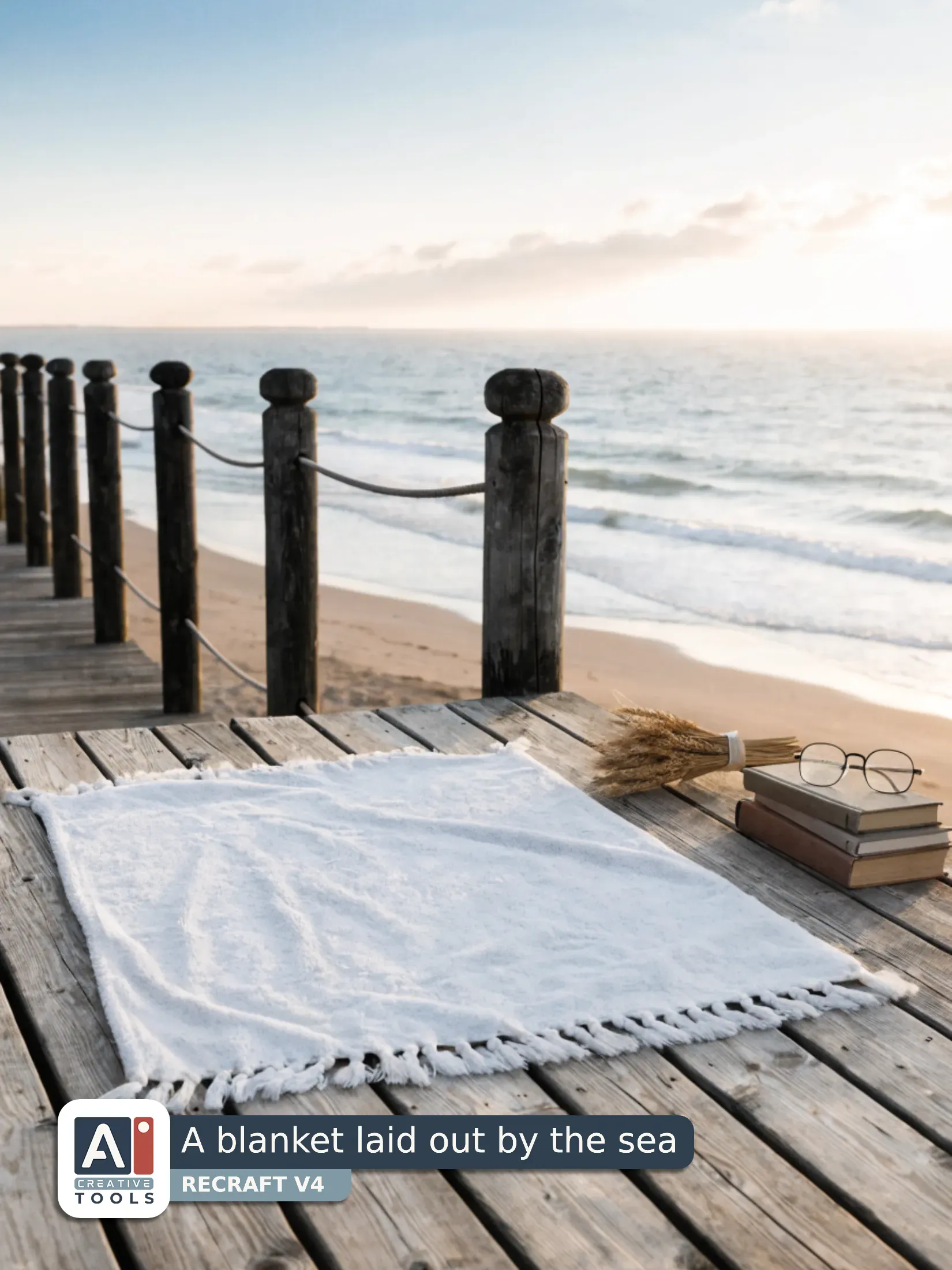
- A blanket laid out by the sea (Recraft) Blank white throw blanket flat lay mockup photograph. The blanket is neatly spread and fully visible on a weathered natural wood deck plank, showing an empty, clean fabric surface with no patterns or lettering. Background is a seaside boardwalk at sunrise with soft misty horizon, gentle waves, and a warm glow. Near the blanket’s corner sits a stack of books and reading glasses, and beside them rests a small bundle of dried wheat tied with raffia. Soft natural daylight, shallow depth of field, realistic texture, 50mm lens look.
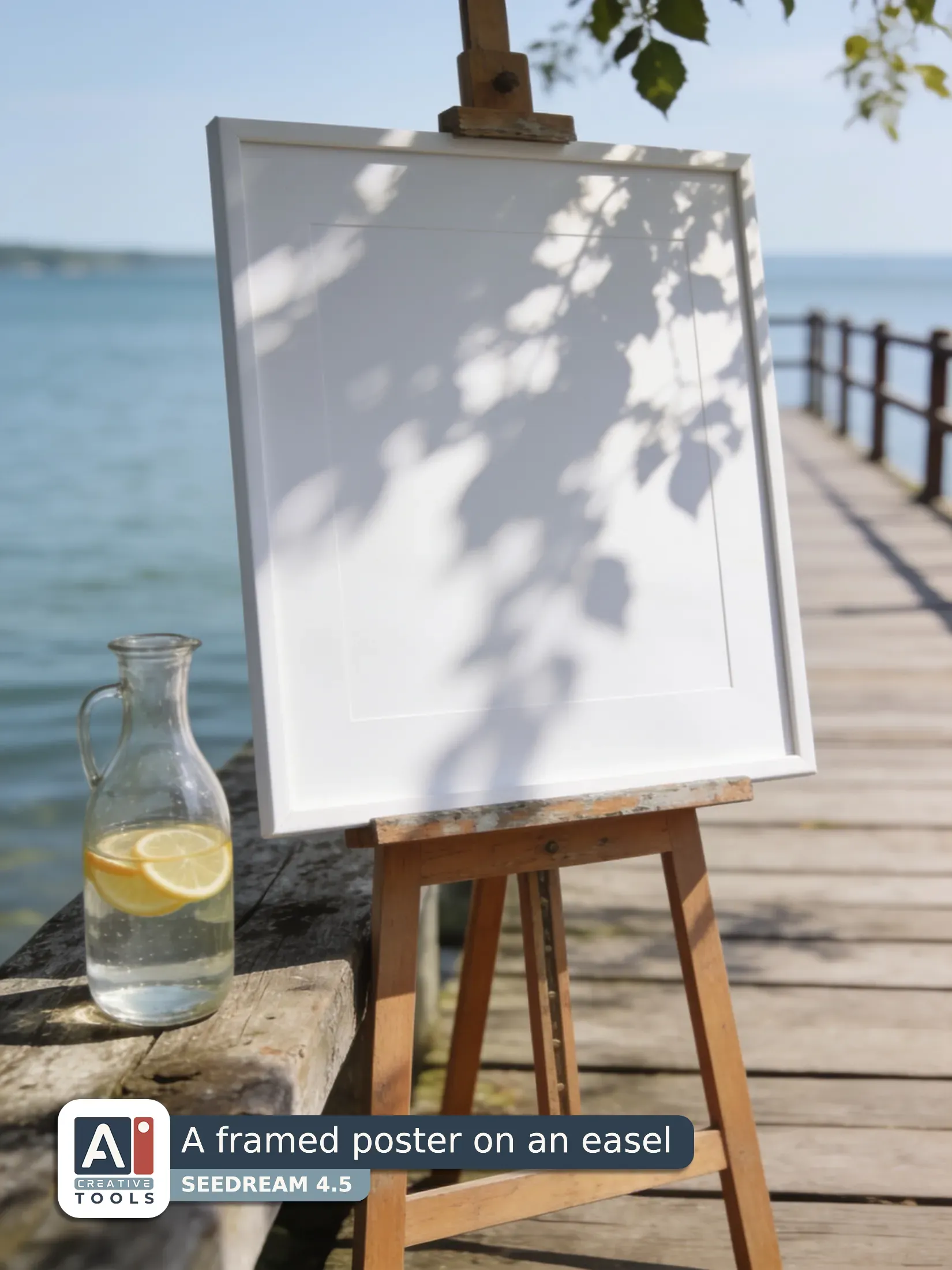
- A framed poster on an easel by the water (Seedream) Photography: a product photograph of a blank white frameless landscape poster standing on a wooden easel, its surface completely empty and clearly readable. The poster is crisp and matte, with clean edges and no lettering, logos, or patterns, letting the blank sheet dominate the frame. Behind it, a coastal lakeside dock backdrop shows softly blurred planks and railings, while dappled leaf shadows fall across the poster and easel in mottled patches. Place a glass carafe of water with thin citrus slices on a weathered wooden surface beside the easel, slightly out of alignment for realism. Natural coastal daylight filters through leaves, creating gentle contrast and a calm summer mood. Photography.
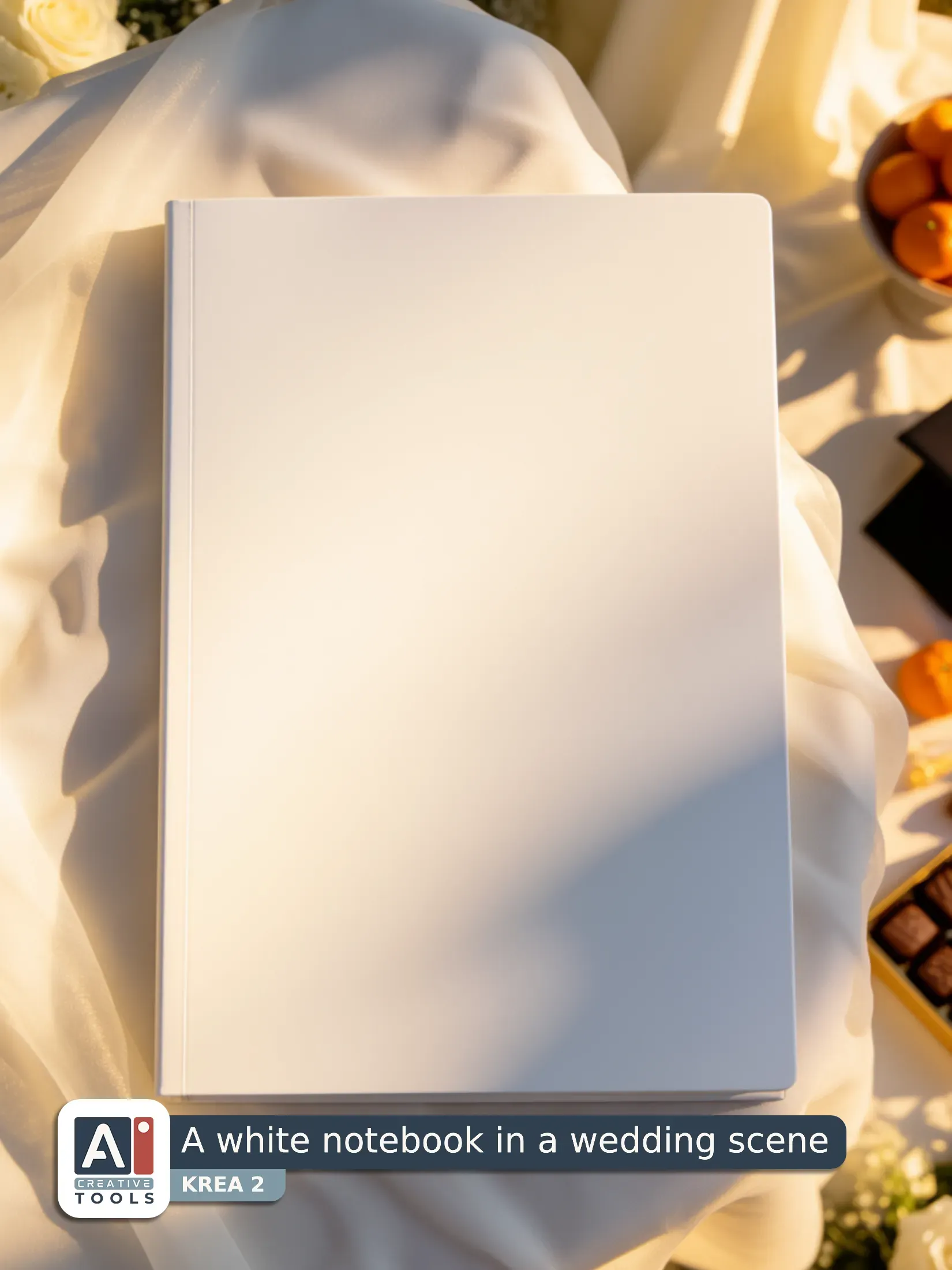
- A white notebook in a wedding scene (Krea) Photograph of a blank white notebook in portrait orientation, shot from above with a Canon EOS R5 and crisp 50mm detail, lit by warm golden hour sunlight. The notebook lies flat on a softly wrinkled surface of sheer white drapery, with subtle fabric texture visible beneath it. In the wedding setting around the notebook, there are white florals and delicate folds of cloth. Near the notebook sits a small bowl filled with clementines, beside a box of chocolates and a graduation cap, all arranged neatly with natural shadows. No markings cover the notebook cover.
- A maroon tee seen from the back (Krea) Photograph in soft natural daylight from a mid-back camera angle, showing a blank faded burgundy fitted t-shirt in garment-dyed cotton worn on a woman in her fifties with light brown skin and shoulder-length curly hair. She stands in a botanical conservatory with her hands on her hips, back view toward the camera, wearing a dark leather jacket over the shoulders. The t-shirt fabric shows subtle garment-dyed mottling and fine cotton texture with clean, empty surface at the center back. A straw hat rests near her feet on a stone floor, softly lit by sun through glass.
AI tools - what we tested, and our current pick
What the builder hands you is a prompt, not a photo, so choosing the generator is up to you. We tested mockup prompts on the following AI tools (versions named): ChatGPT Image 2, Gemini 3 and Gemini 3 Pro, Midjourney v 7 and 8.2, Ideogram 4.0, Flux.2 Pro, Krea 2, Recraft V4, Seedream 4.5 and 5.0 Pro.
Our general impression is that modern AI tools all create decent photorealistic product images, and it was not easy to decide which one is the best this time, but still here's our order of preference:

ChatGPT

Gemini

Recraft

Ideogram
Flux

Seedream

Midjourney
Krea
ChatGPT takes the top spot for mockups at the moment. Mockup format is the dropdown that asks the most of a generator, and ChatGPT reads those terms closely: a blanket draped over an arm, a folded stack, a product held in hand. Gemini stands right beside it, and today these two are the most advanced at understanding prompts. Worth knowing when a shot refuses to come out: if your AI cannot manage a draped over the arm image, it is not a prompt issue, it is most likely the AI. Every tool gets a full write-up in our What AI Tool to Pick for Mockups guide.
Recraft
Seedream
Flux
ChatGPT
Ideogram
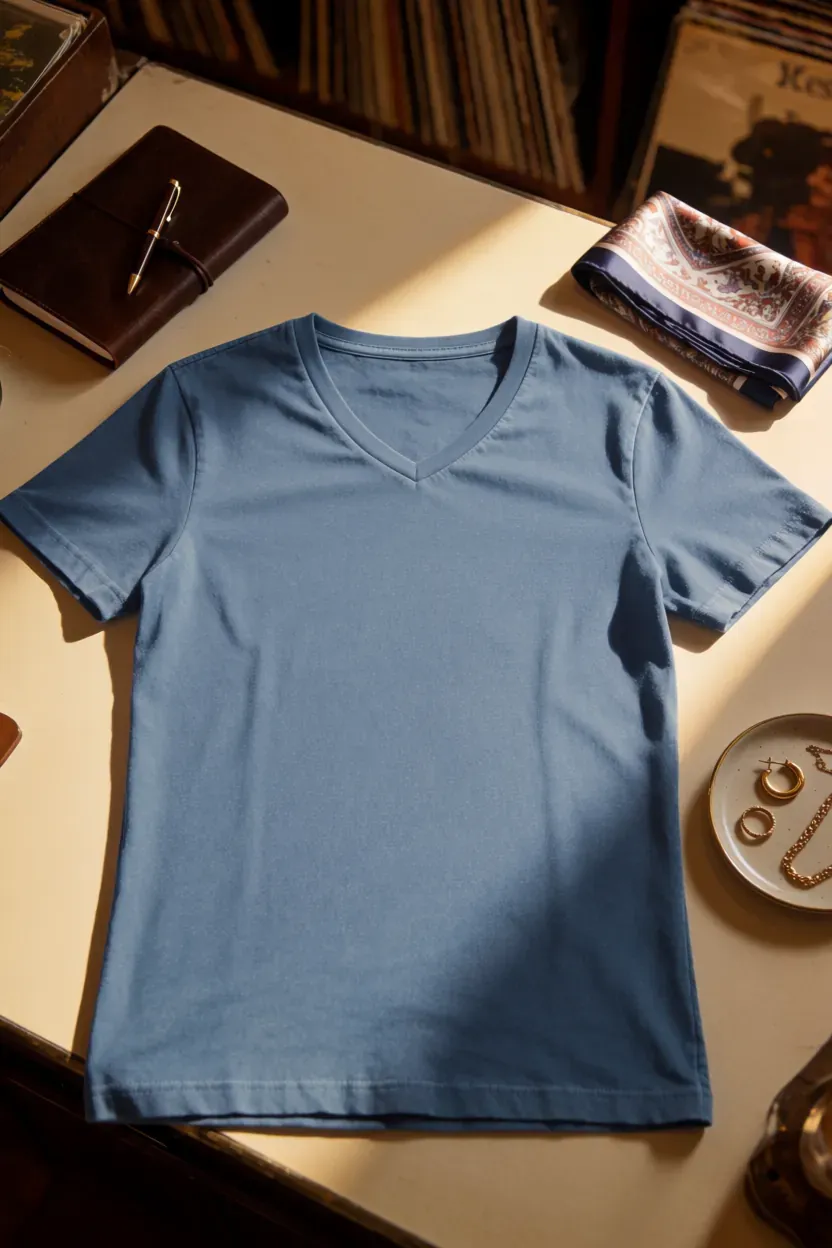
Krea
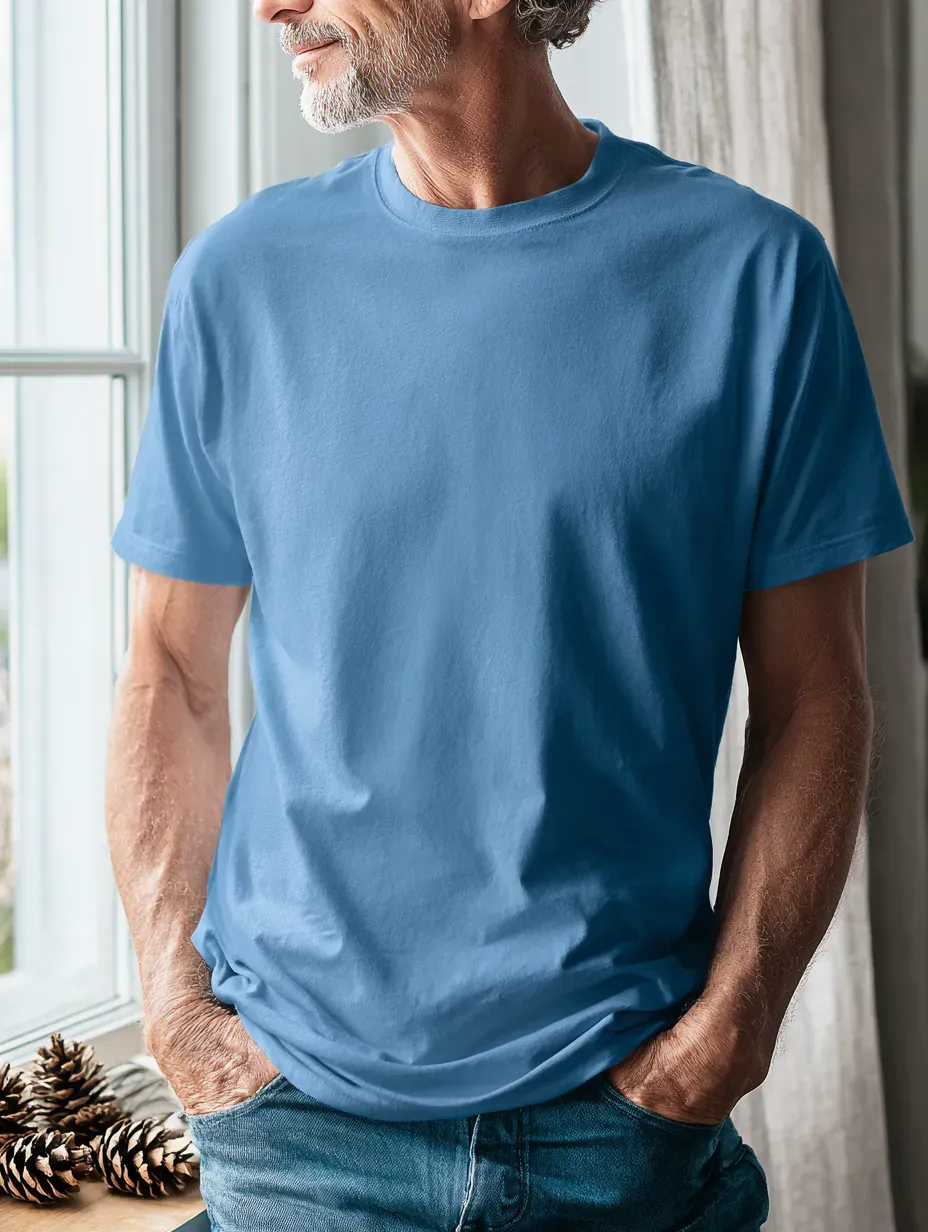
Midjourney
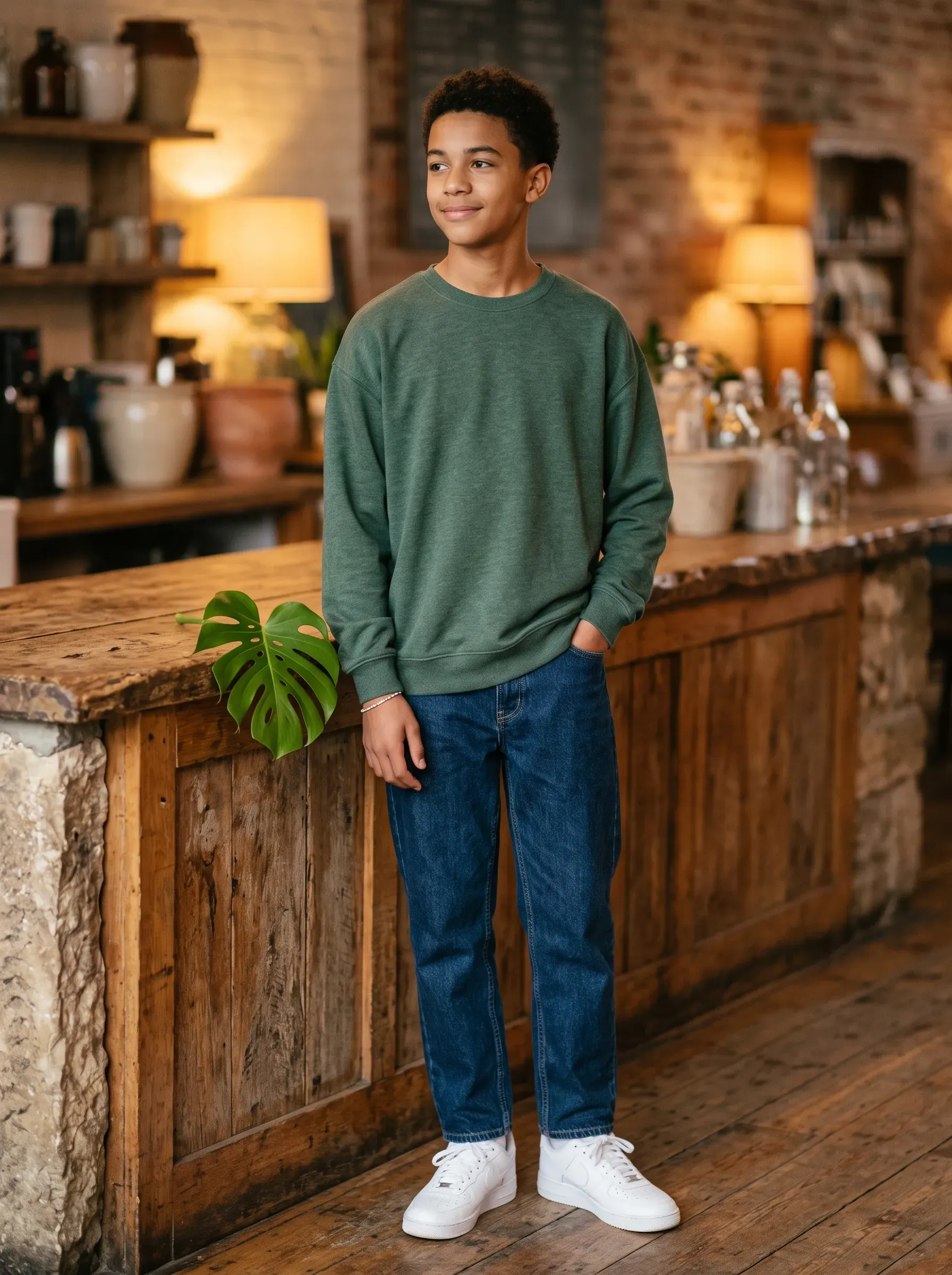
Gemini
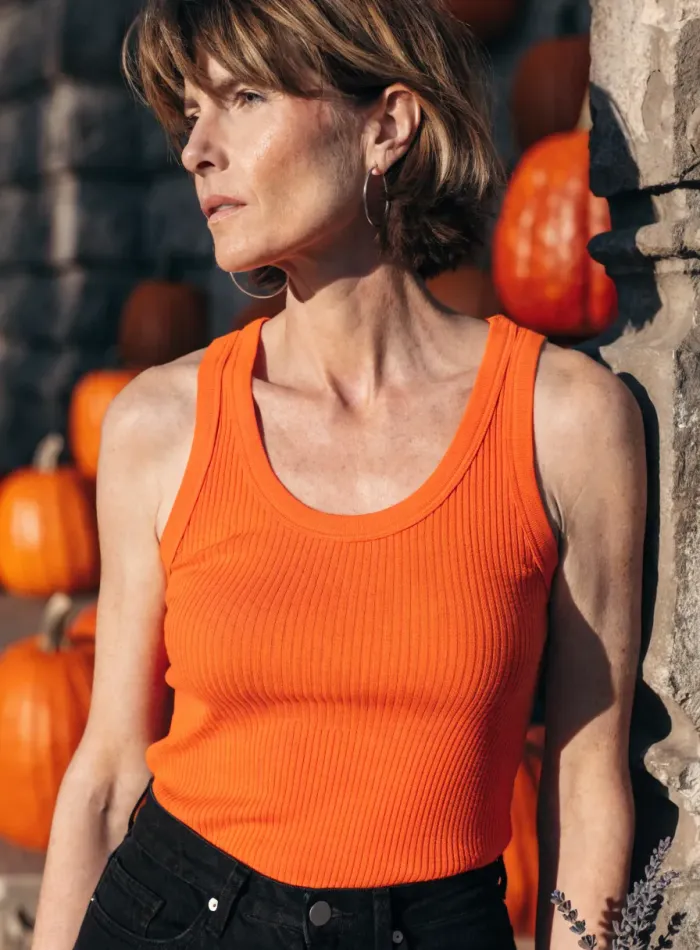
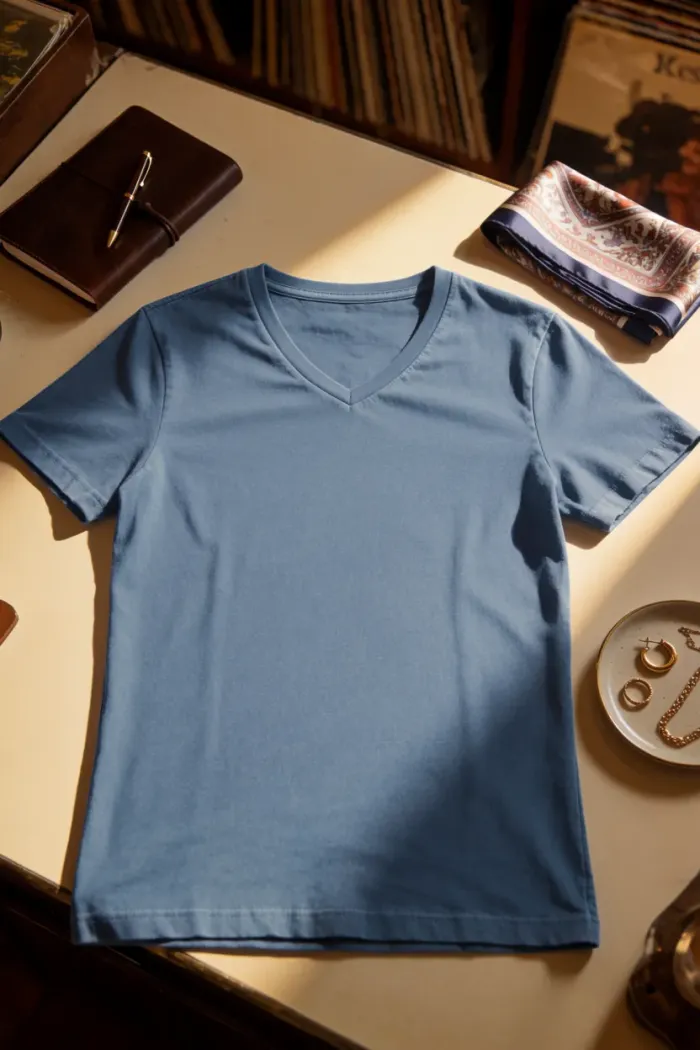
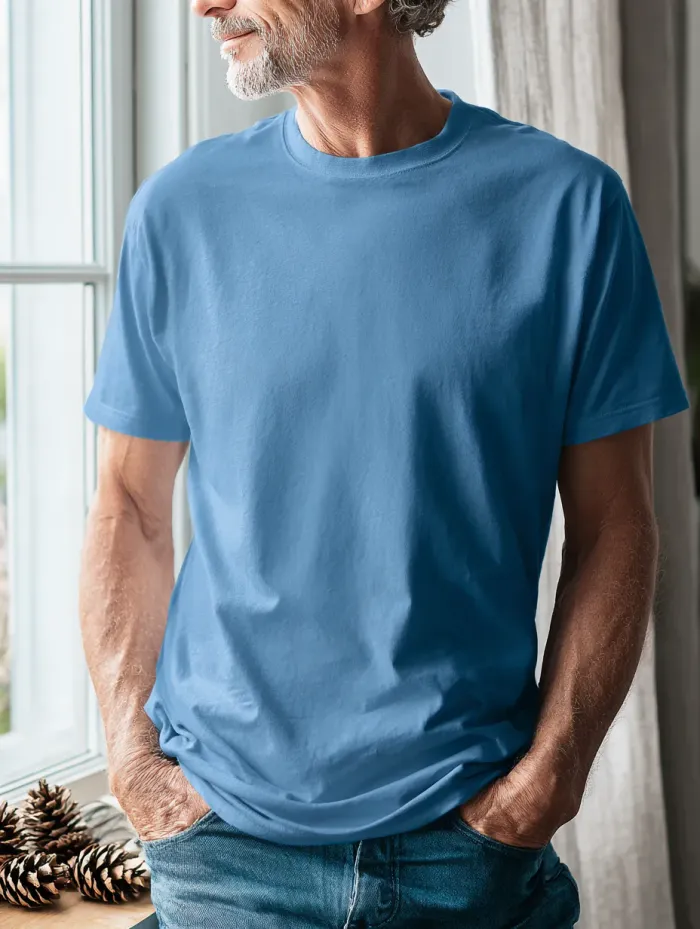
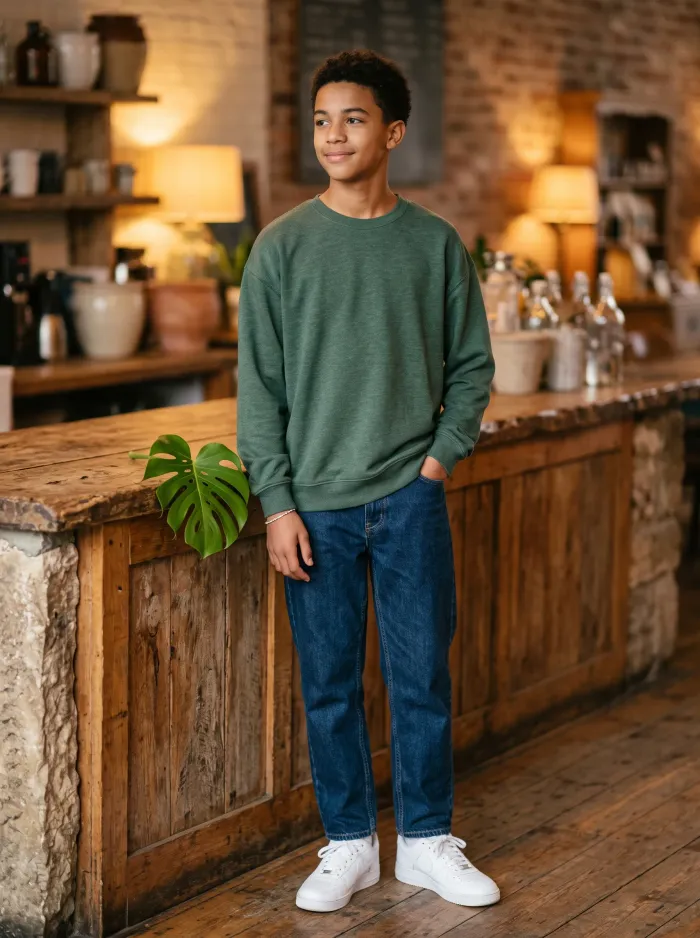
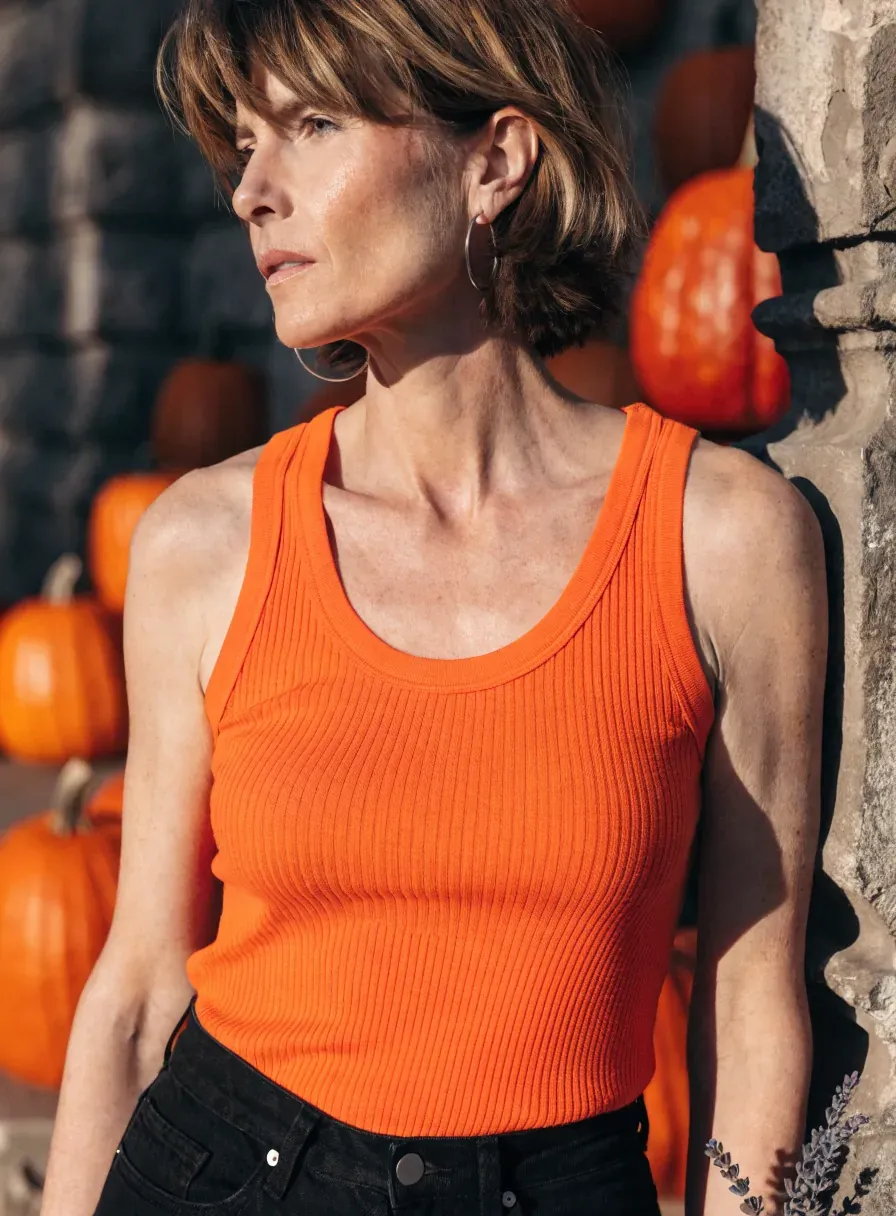
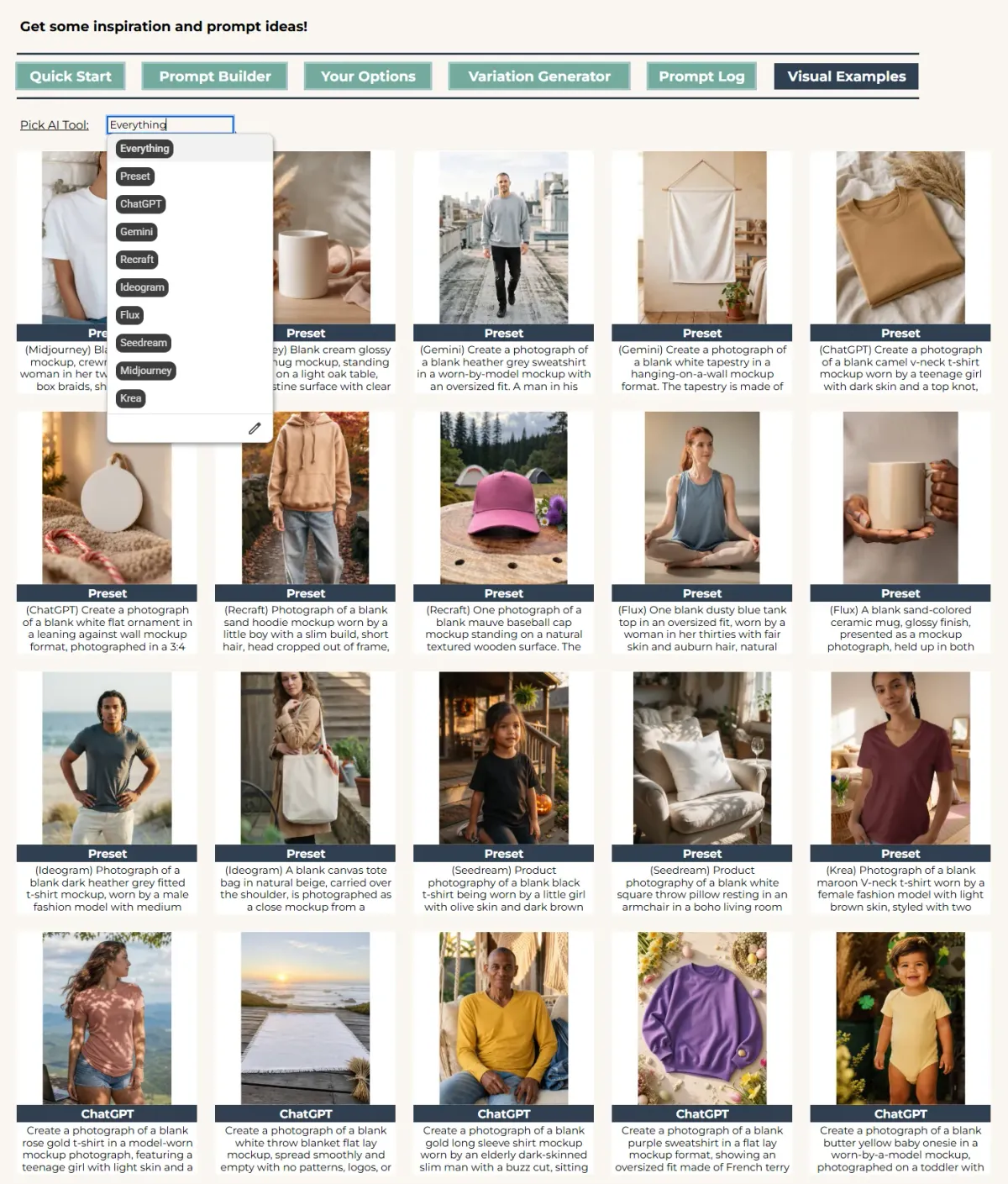
These comparisons come with your purchase too. Visual Examples is the sheet that collects what each tested tool gave back, with a dropdown that switches between them one tool at a time. It is the quickest way to see how a generator treats your product before you spend credits finding out. The screenshot below shows how this sheet is organized.
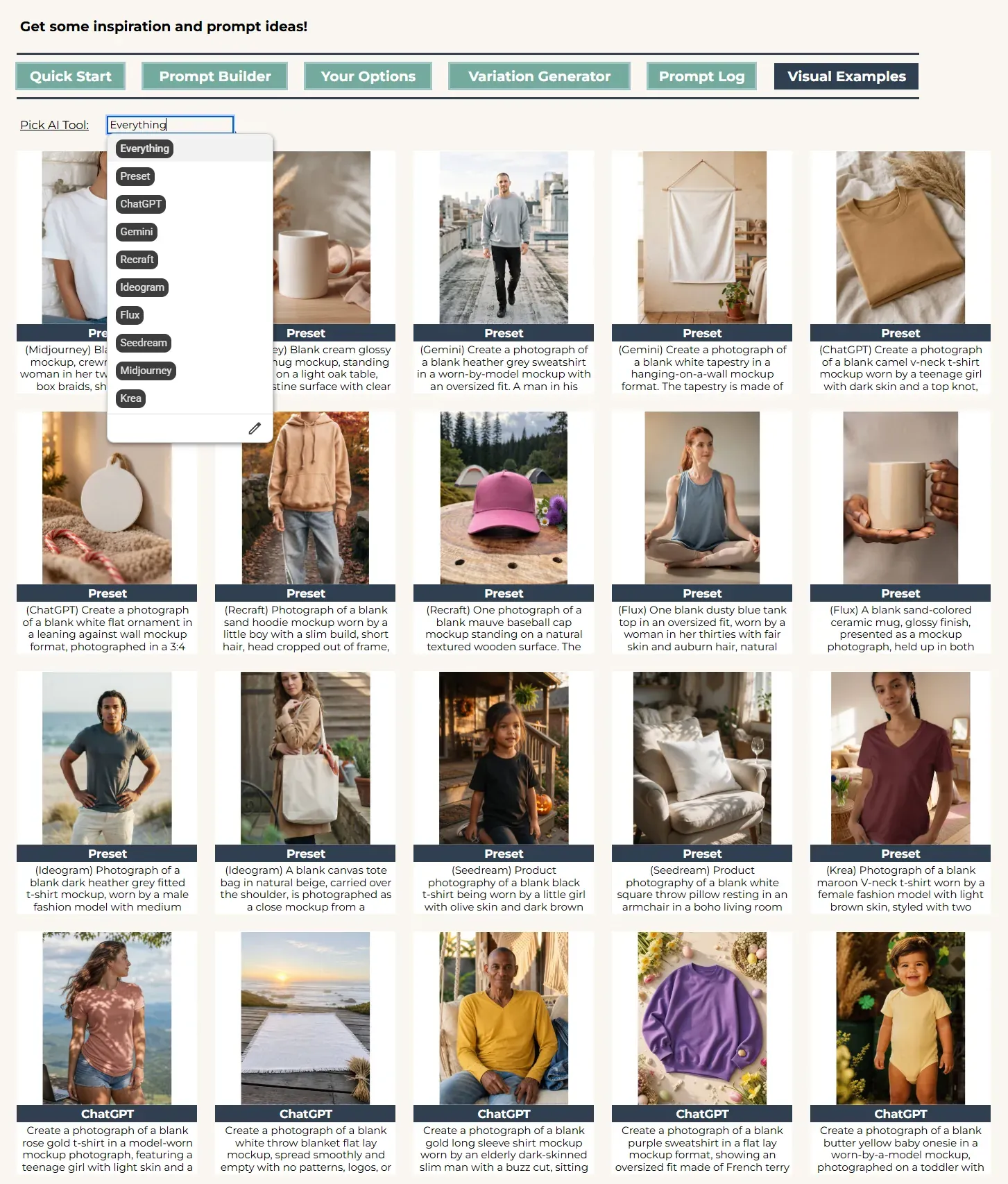
Visual Examples sheet
How the builder is organized
Start with the map. The dropdowns fall into three sections: Product, Model, and Scene. The layout will feel familiar if you already own one of our builders, and it still works differently here, because commercial photography comes with specs of its own.
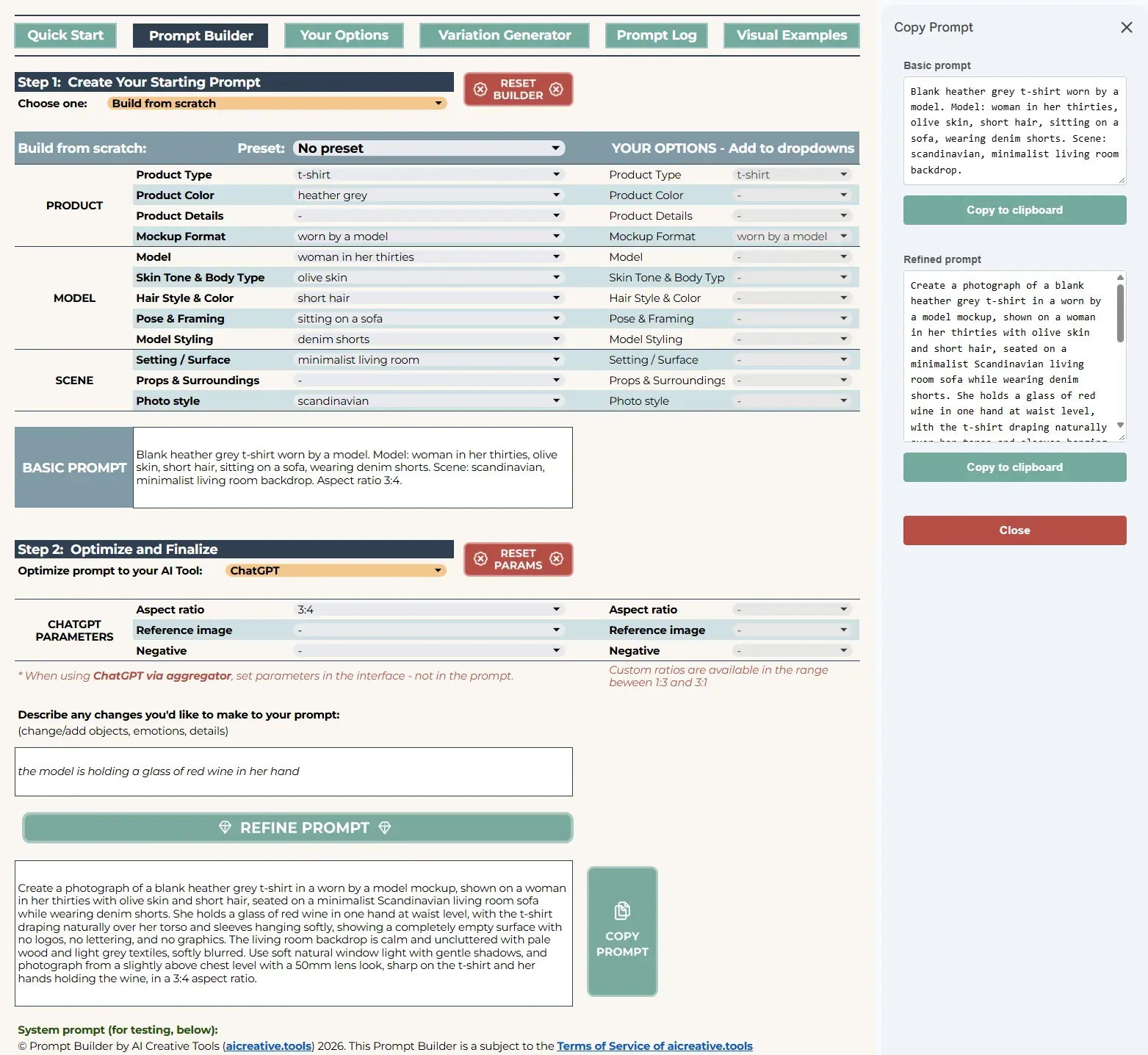
Mockup Builder Overview
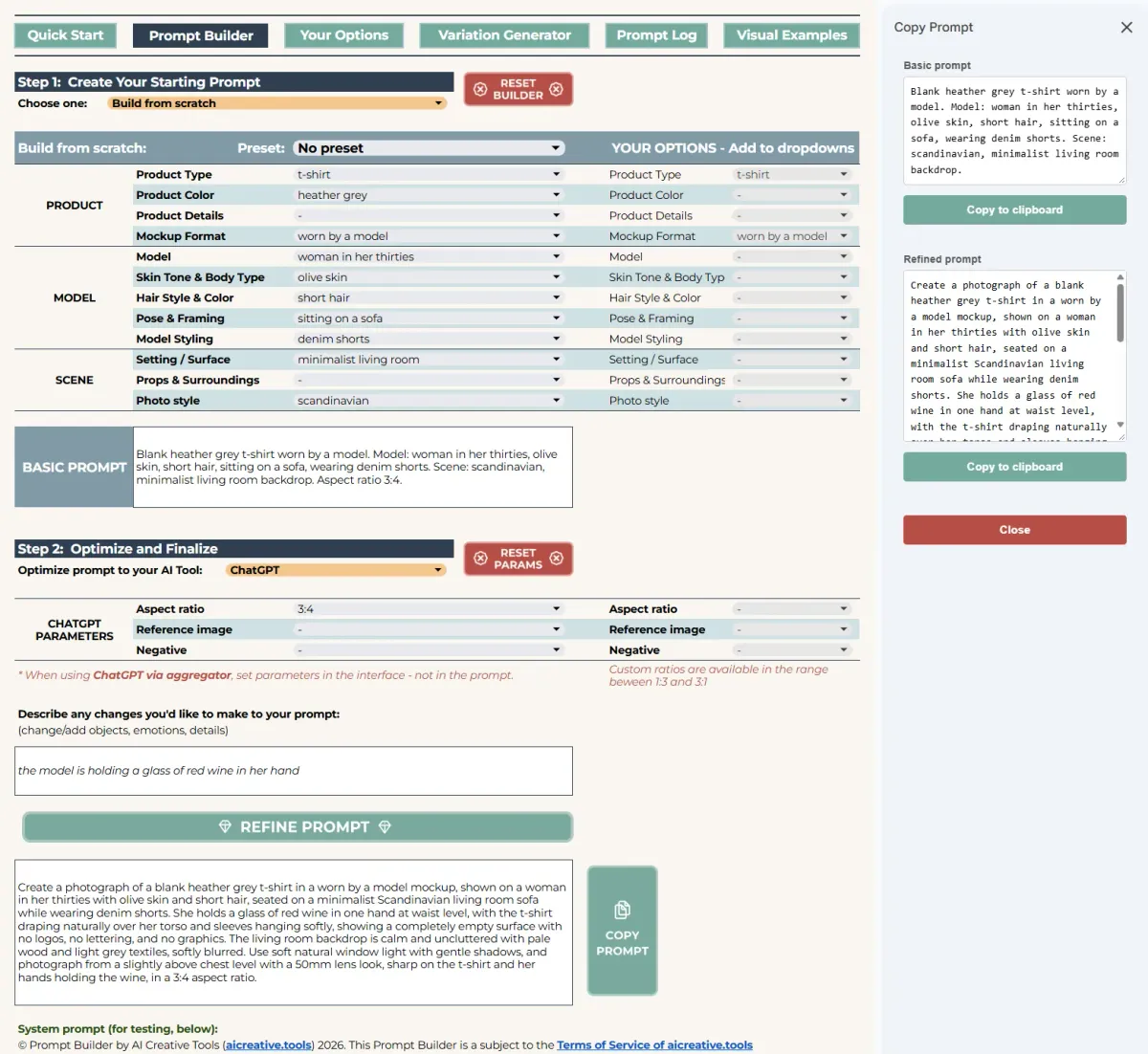
Product holds four dropdowns. Product type opens with a long list of apparel and non-apparel options. Product color is grouped for convenience: neutrals, heathers, muted and earth, brights, and metallics where a non-apparel product calls for them. Product details is the one to reach for only when prompts without details come back wrong. A plain t-shirt usually looks right on its own, so there is no need to spell out a crew neck and pad the prompt. Mockup format closes the section and decides how much of the builder you use: choose from the “With a model” group and the Model section is well visible.
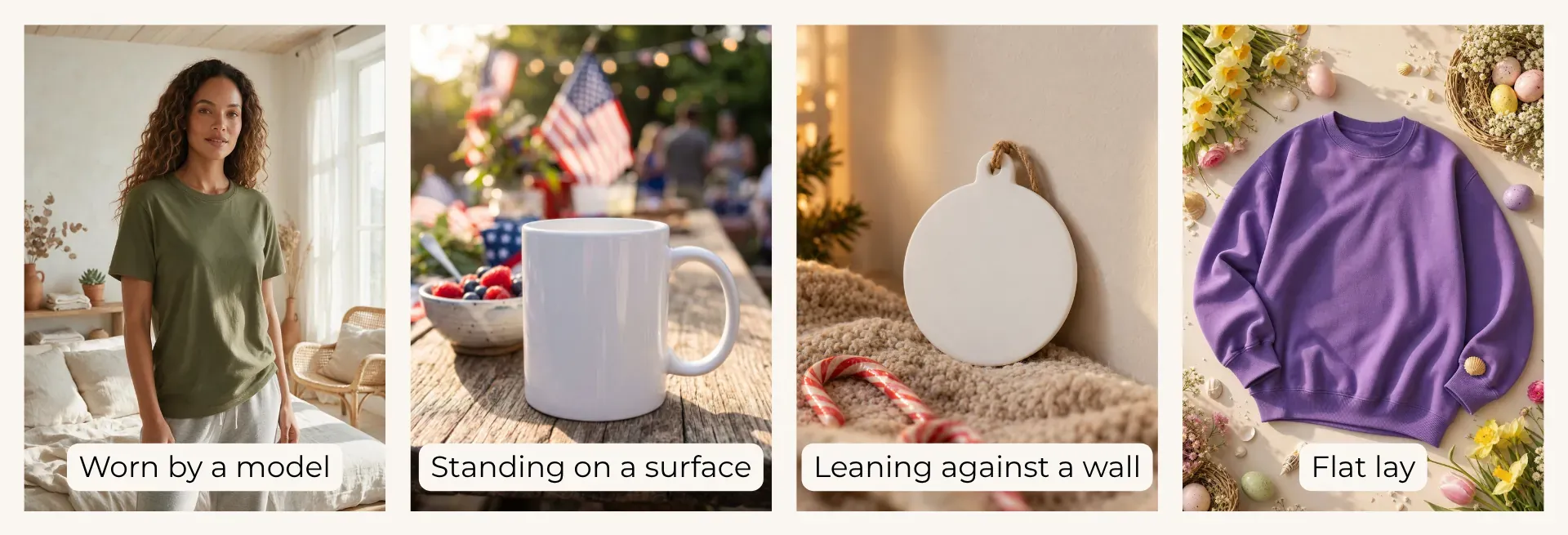
Mockup format examples
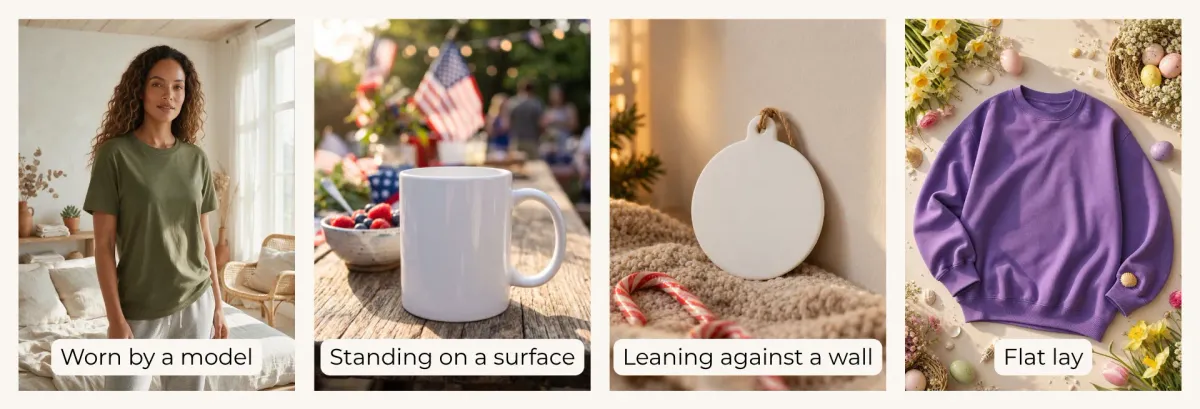
Model is where the person in the shot takes shape. The Model dropdown covers female and male models, teens, kids and babies, and elderly people. Skin tone & body type reads as it sounds, and it is a good place to turn on multiple selections, and a tone and a body type can go in together. Hair style & color works the same way, with a wide set of both, so a color and a cut can go in side by side. Pose & framing carries poses, including some in motion, and it also holds the “View” and “Crop” groups, which belong here because they matter most once a model is in the picture. Model styling adds bottoms, useful with a t-shirt mockup, along with layers worn over your product, accessories, and details like tattoos and facial hair. One thing to know about footwear: name it and the AI will want to show it, which usually means a full-body view or a seated pose. For a tight crop, leave footwear out.
Scene sets everything around the product. Setting / Surfaces picks the backdrop, and its surfaces come in handy for flat lays. Props & surroundings is mostly a flat lay dropdown, another good candidate for multiple selections.
Two shortcuts we use there: add props of your own through the “Describe any changes” field, or write something like “add relevant props, specify each prop” and let the AI populate the scene so the frame does not come back half empty.
Photo style closes the builder with mood, lighting and camera options. The top-down 90-degree angle deserves a note of its own: when picking the flat lay mockup format is not enough for your generator to understand the shot, adding that angle settles it.
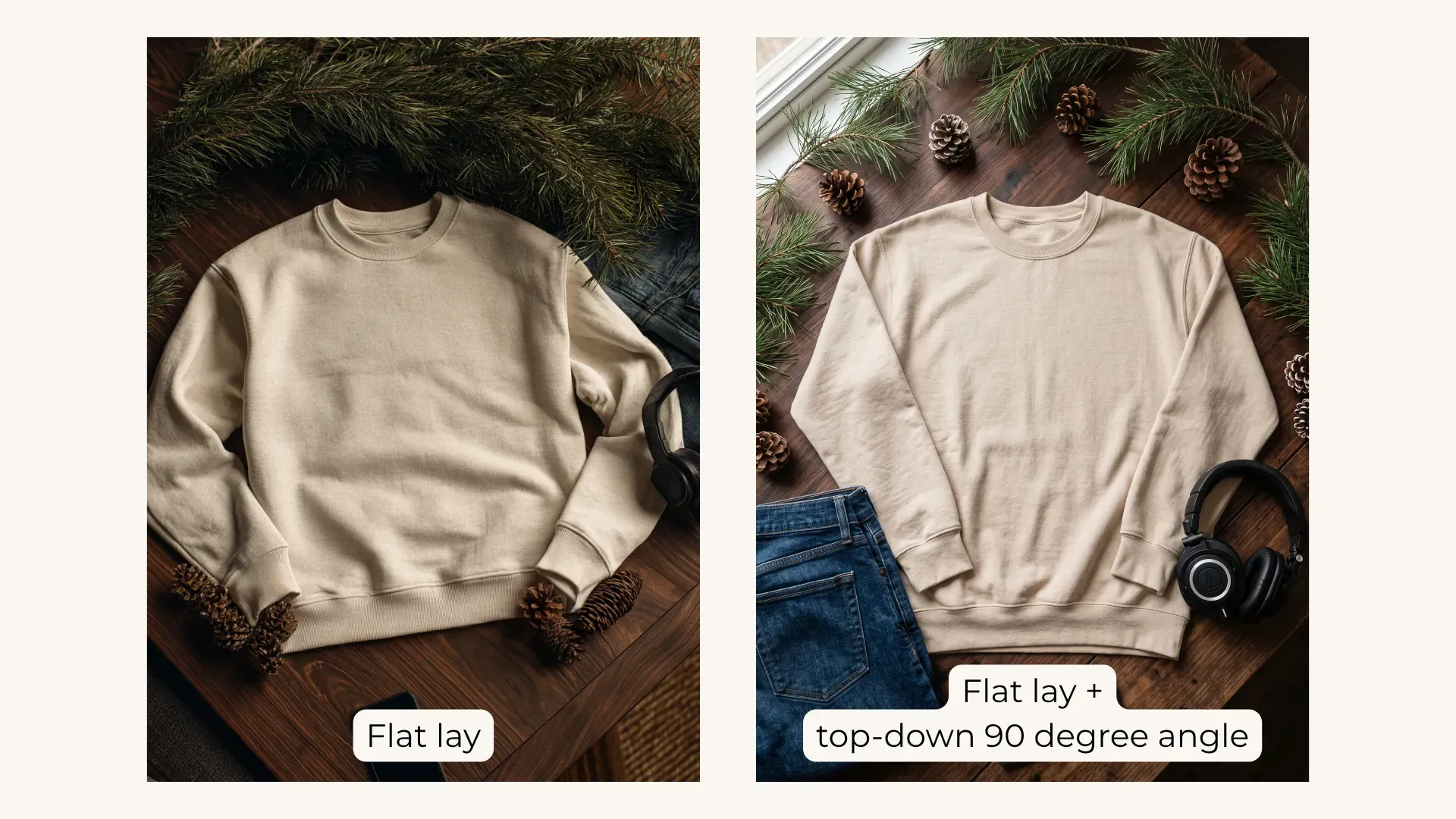
Parameters sit alongside for Midjourney, Gemini and ChatGPT. Midjourney gives you version, aspect ratio, stylize and negatives - where you exclude something from the frame. On stylize we would use Style raw and probably nothing else. Later versions look more natural, so it is worth staying current, and aspect ratio depends entirely on the project. Gemini and ChatGPT share a similar block: aspect ratio, negatives, and a reference image dropdown, which tells the AI what kind of reference you attached and how to use it properly. For every other AI tool, the parameters go straight into its own interface.
Getting good mockup results
- The dropdowns that arrive pre-selected are the ones to fill every time: Product type and Mockup format. We add product color on top without thinking about it, and white is our go-to for showing all-over print designs. The rest follows your preference.
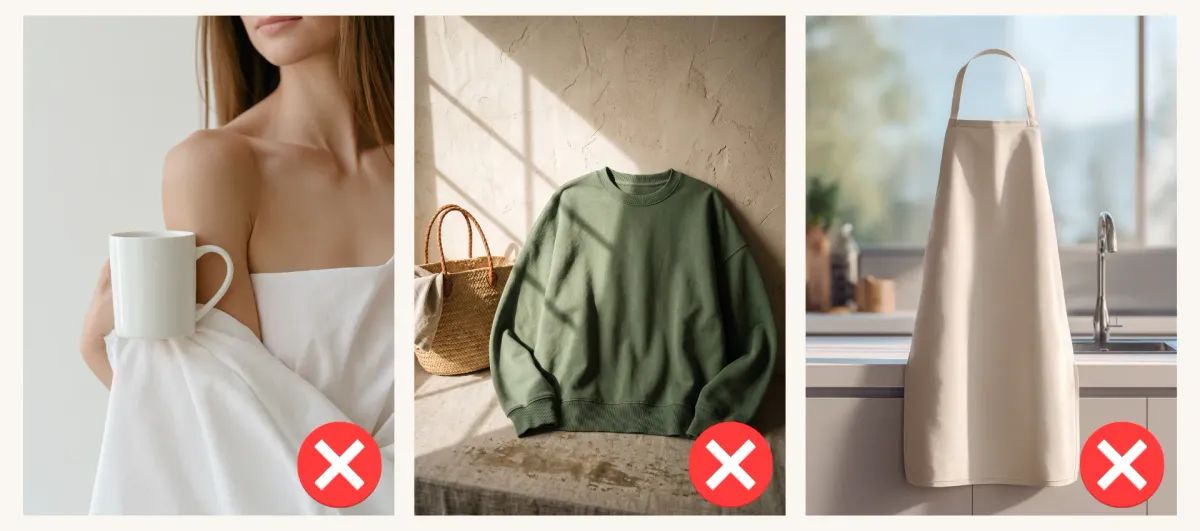
- Keep the Product type and Mockup format pair logical. A mug cannot be rolled up, a sweatshirt cannot stand on a surface. Pick the two so they describe a shot that could physically exist, and the results improve straight away.
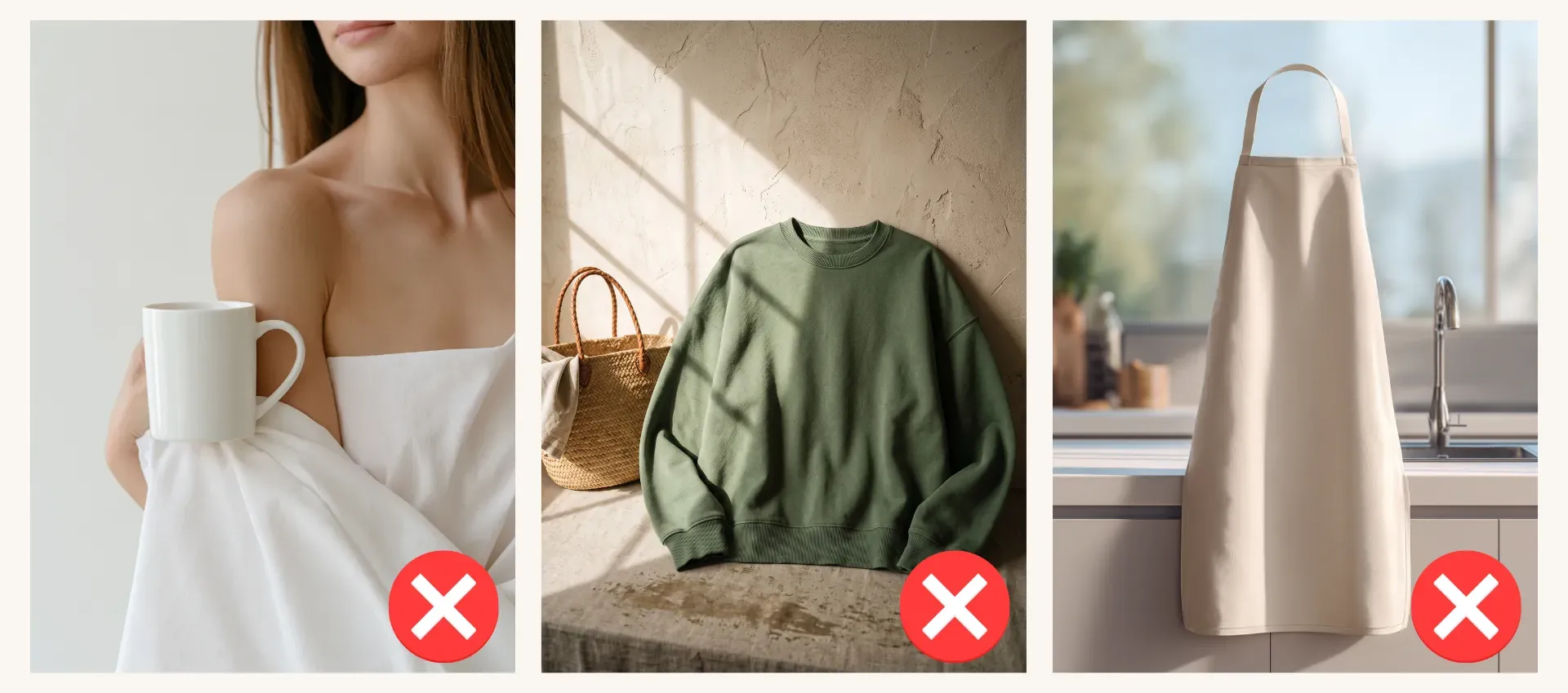
Product Type and Mockup Format Mismatch
- A few fixes worth keeping close.
- If the model is turned to the side and you want them facing the camera, go back to Pose & framing and pick accordingly.
- If the product comes back with a design on it, use the Negative dropdown for Midjourney, ChatGPT and Gemini, or say it in “Describe any changes” for other tools.
- If an apparel product looks wrinkled and you want it smooth, the same two places handle that as well.
- Some things are the generator's doing rather than the prompt's. Plastic faces and that unmistakable AI look come from older, less advanced models, so the cure is a better tool. Distorted proportions or a strange hand still happen even on the newest models: refine the prompt and generate again. If the prompt caused it, that fixes it, and if it was a typical AI glitch it rarely repeats.
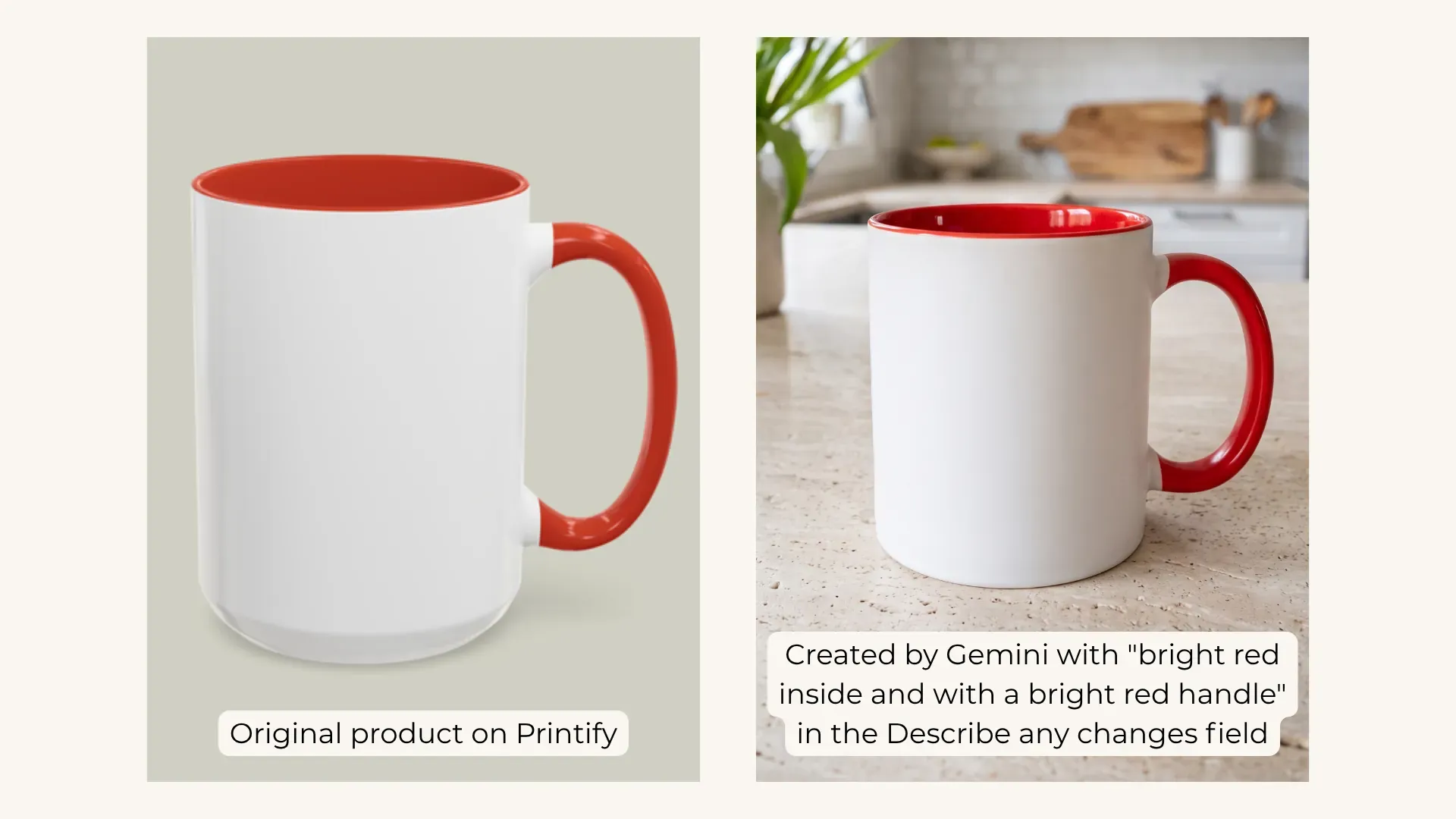
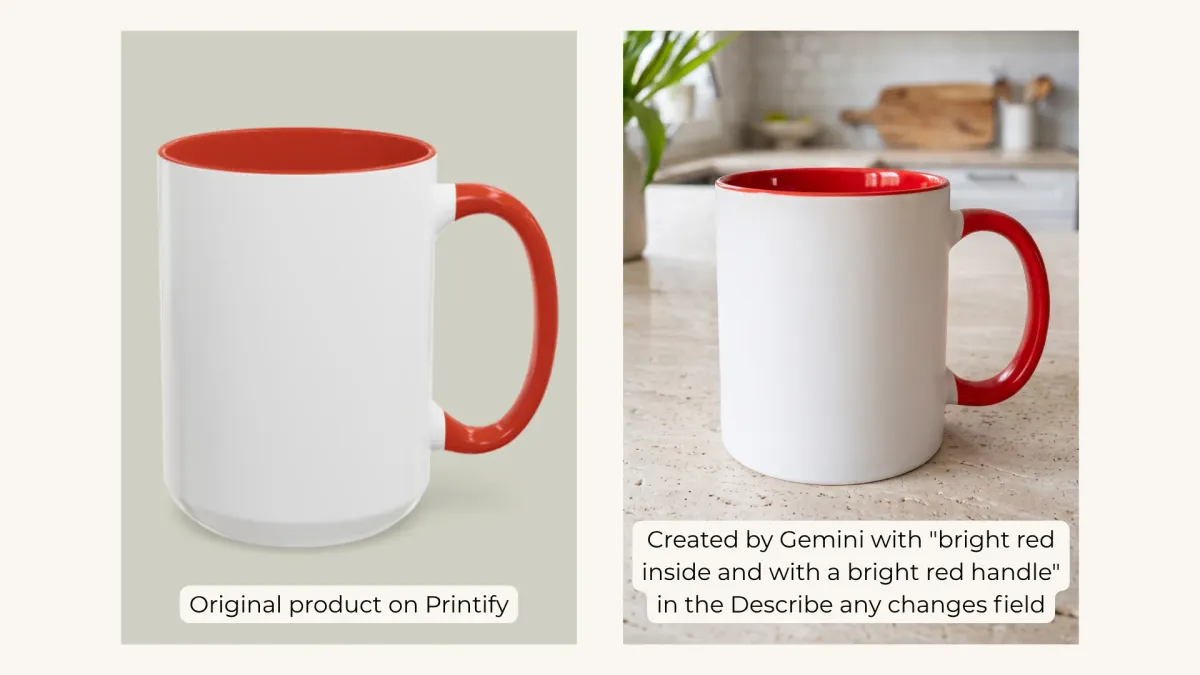
- The honest limitation, and the one worth being clear about: recreating a specific real product exactly is difficult. Ask yourself how critical that exactness is. If the mockup is there to present your design, the builder and today's AI will serve you well. If you are matching the precise shape, material and specs of a particular blank, it gets harder, and the less common the product, the more often small differences show up. Basic t-shirts come out right in most cases. Beyond them you have two levers: Product details, which carries apparel cuts, fabric types, hard material types, drinkware specs such as a lid on a tumbler or a handle on a tote bag, shape and format options for wall art, pillows and ornaments, plus finishing touches, all of it fine to combine with multiple selections. And “Describe any changes”, where the remaining specs go in your own words.
Ready for more? Our Prompt Builder guide runs through several kinds of workflows, and What AI Tool to Pick for Mockups weighs every tool for this kind of photography.
Happy creating
That is the Mockup Builder. Choose your product, choose the format of the shot, bring the generator you like, and start building. AI is already very capable of making mockups, and we hope this tool earns its place in the routine between finishing a design and listing it.
Every image in this guide came from prompts built in the Mockup Prompt Builder.